1.The clock must be connected to the internet for automatic time synchronization. Please follow the instructions below for network setup.
2.Once the clock is successfully connected, you can customize display content, brightness, alarms, etc., based on your needs.
There are two methods to access the settings interface (choose one):
① Connect to the clock’s hotspot (network setup): Strictly follow the network setup steps each time you access the settings.
② LAN IP access: Requires successful prior network setup. See [Downloads] - [Accessing the Clock via LAN IP] for details.
Network Setup Video Tutorial
Clock Network Setup
1. Overview
When entering configuration mode, the clock generates a Wi-Fi hotspot.
Connect to this hotspot using a phone or computer.
Enter the specified IP address in a browser to access the configuration interface.
On the web interface, configure the Wi-Fi network to bind and other parameters.
After completing the settings, save changes and restart the clock to apply the new configuration.
2. Entering Configuration Mode
Press and hold the middle yellow button for 2 seconds to enter configuration mode; you will hear a ‘beep’.
The clock displays a looping animation of [- -] -> [o o], indicating it has entered configuration mode.
In configuration mode, the device creates a Wi-Fi hotspot named IOTTIMER_xxxx.
3. Connecting to the Clock Hotspot
Disable mobile data (cellular network) on your phone.
Connect to the hotspot named IOTTIMER_xxxx using your phone.
The password is 12345678.
4. Wi-Fi Configuration
Upon successful connection, the clock will display the time.
Visit 192.147.10.1 in a browser to access the clock’s main settings menu.
In the network settings interface, select the Wi-Fi name to bind and enter the password.
After configuration, click Save and restart the clock, then wait for it to connect to the network.
5. Verifying Network Connection
Upon successful connection, the blue LED in the bottom right corner of the clock will turn off.
If it remains constantly lit, it indicates a connection failure. Repeat the steps above to access the network settings interface and check the reason for the last failure in the network status bar.
6. Potential Issues During Network Setup
If your phone prompts ‘No internet connection’ after connecting to the clock’s Wi-Fi hotspot, ensure the connection is maintained.
If the page cannot be accessed, disable network optimization features, auto network switching, and network acceleration to prevent automatic disconnection from the hotspot.
In short, after connecting to the hotspot, ignore the no-internet warning, maintain the connection, and disable phone optimization features that may affect connectivity.
Button Operations
Daily Use
1.The LAN IP is assigned by the router and may change over time. To fix the LAN IP, configure MAC address binding in the router’s admin interface.
2.The clock panel is made of acrylic and is not scratch-resistant. After removing the protective film, use a soft cloth (e.g., eyeglass cloth) for daily cleaning to avoid scratches; avoid using tissues or similar materials.
Product Introduction
WHEN Voice Broadcast Edition.
· High-precision time synchronization ensures that, after successful time acquisition, the display switching across multiple devices remains essentially consistent.
· The voice edition offers a variety of alarm sounds and time announcement tones for user selection, with functions such as time announcements and alarms operating normally offline without network dependency.
· Equipped with rich features and flexible settings, it supports customizable display content to meet personalized needs.
· Built-in WEB service eliminates the need for additional apps and imposes no regional restrictions, enabling global use.
· Supports remote online upgrades (OTA) for easy feature expansion and issue resolution.
WHEN Series Comparison
功能项
WHEN
WHEN Voice
Time Synchronization Method
WiFi (2.4G) SNTP
WiFi (2.4G) SNTP
Network Connection Mode
DHCP/Static IP
DHCP/Static IP
NTP
Customizable 2 Groups
Customizable 2 Groups
Global Time Zones
Supported
Supported
Daylight Saving Time
Supported
Supported
Alarm Sound
Buzzer Sound (6 Types)
Voice Broadcast/Music (47 Tracks)
Alarm Mode
Public Holidays/Weekdays/Single/Weekly Cycle
Public Holidays/Weekdays/Single/Weekly Cycle
Number of Alarms
10 Groups
10 Groups
Time Announcement Timing
Hourly/Half-Hourly
Hourly/Half-Hourly
Time Announcement Mode
Buzzer Sound (3 Types)
Voice Broadcast/Bell Sound (10 Types)
Sound Volume
Fixed
30 Levels Adjustable
Automatic Screen Off
Timer/Photosensor/Photosensor+Timer
Timer/Photosensor/Photosensor+Timer
Timer
1min-5h, Button Operation
1min-5h, Button Operation
Brightness Adjustment
11 Levels, Photosensor/Timer/Fixed
11 Levels, Photosensor/Timer/Fixed
Temperature Data
Built-in Sensor + Real-Time Weather
Real-Time Weather
Humidity Data
Real-Time Weather
Real-Time Weather
OTA
Supported
Supported
Feature List
1. Network & Synchronization
Wi-Fi Time Synchronization: Automatic synchronization interval (1m/5m/1h/24h/off)
Synchronization Status Indicator: Blue LED on the bottom right of the front panel
Supports 2 customizable NTP time server addresses
Supports global time zones with configurable automatic daylight saving time
Supports OTA remote update functionality
Configuration interface uses built-in web service, accessible via the clock’s LAN IP
Supports DHCP and static IP settings
Supports modification of its own MAC address
2. Display Settings
Supports dual time zones (primary and secondary) with alternating display
Supports time display in minutes/seconds (0.1s) or hundredths of a second (0.01s)
Display divided into 3 areas, each configurable with different content
Supports alternating display with up to 3 pages, each page duration adjustable from 1-60 seconds
Option to retain or hide leading ‘0’ for time and date
Time display supports 12-hour/24-hour format
Time separator (:) can be set to blink or stay solid
Date format options: MMDD/MM-DD/DDMM/DD-MM
Day of the week format options: Numbers 1-7/Numbers 1-6,0/English-like characters
Temperature unit options: Celsius (°C)/Fahrenheit (°F)
Supports countdown and count-up timers with units: days/hours+minutes+seconds
Supports time offset settings (range: -30 minutes to +30 minutes)
Statutory holiday list automatically retrieved from the network (currently supports Mainland China and Japan); users in other regions can customize holiday lists
Alarm deactivation options: Button/Button + Photosensitive/Ring duration end
Supports count-up/countdown for specific dates and times
Note:
Currently, the weather service is only available in China (including Hong Kong, Macau, and Taiwan). Support for overseas regions will be gradually added based on the usage rate in the clock’s region.
Specifications
Product Name: IOTTIMER CLOCK - WHEN Voice
Product Model: CWT9S20
Clock Dimensions: 178x49x24mm (L x H x D)
Power Interface: TYPE-C (5V⎓1A)
Network Method: WiFi (2.4G)
Synchronization Protocol: SNTP Protocol
Material: ABS, Acrylic, etc.
Operating Temperature: -20°C ~ 60°C
Note: To ensure stable operation, it is recommended to use a power adapter with a rated current of 1A or higher.
During normal operation (without voice announcements), the clock’s current is approximately 30-100 mA, with instantaneous peaks up to 500 mA during network connection.
This clock software focuses on optimizing time synchronization accuracy. The NTP client uses a completely self-developed solution and does not rely on common open-source packages available on the market.
To meet the high-precision needs of professional users, it provides rich advanced configuration options, including: custom primary/backup NTP servers, delay threshold limiting, time acquisition compensation adjustment, Burst mode, etc.
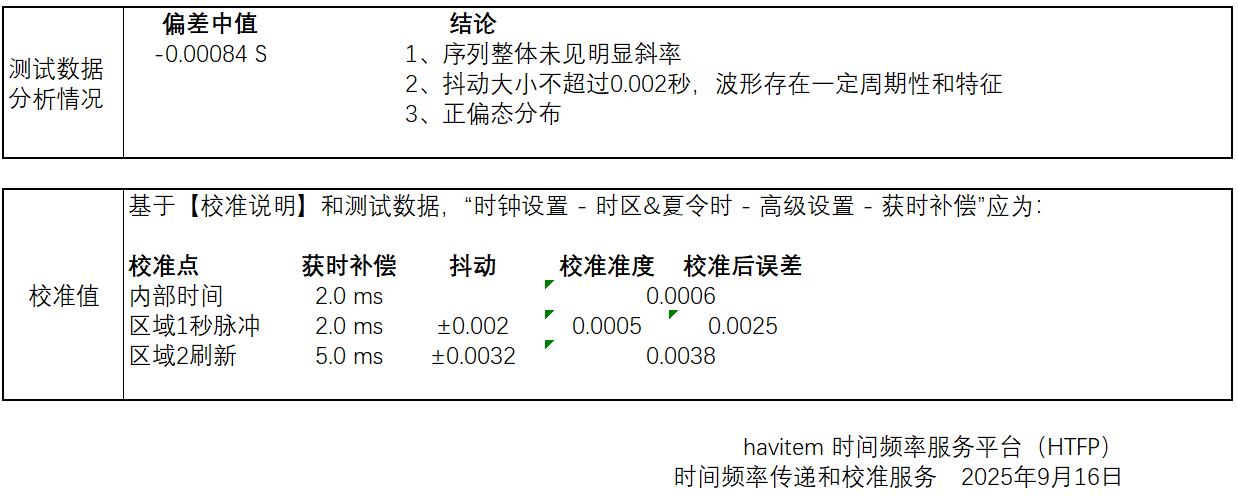
Tests show that under low network latency conditions, system jitter can be stably controlled within 2ms, with overall time synchronization accuracy performing excellently, far superior to the typical NTP synchronization level of ordinary consumer devices (such as computers and mobile phones).
In non-professional measurement scenarios, this device can serve as a reliable high-precision time source of choice.
Related Settings Descriptions
Primary/Backup Servers: Prioritizes the primary server; automatically switches to the backup after multiple failures of the primary.
Delay Limit: Set a delay threshold; data exceeding the threshold is automatically discarded to filter errors from network fluctuations.
Time Acquisition Compensation: Manually fine-tune time offset to compensate for server deviations or display delays; suitable for high-precision needs.
Burst Mode: High-precision rapid time synchronization mode; must be used with a private server; must be disabled on public servers.
Fault Tolerance Mode: Relaxes data validation to allow non-standard data for synchronization; mainly for testing.
Precautions
NTP time synchronization accuracy is affected by multiple factors, including network latency, server quality, client hardware, and system environment, and cannot be absolutely guaranteed by relying solely on a single clock device.
All test data were obtained under specific test conditions and are for reference only; they do not apply to all usage scenarios or network environments.
Please use professional time calibration instruments to evaluate clock accuracy. This clock’s accuracy is far higher than that of ordinary consumer devices (e.g., computers, mobile phones); comparing or evaluating clock accuracy with such devices lacks reference significance.
Accuracy data is based on tests performed with software version 2.1.x.
Review Videos
Accuracy Test Data
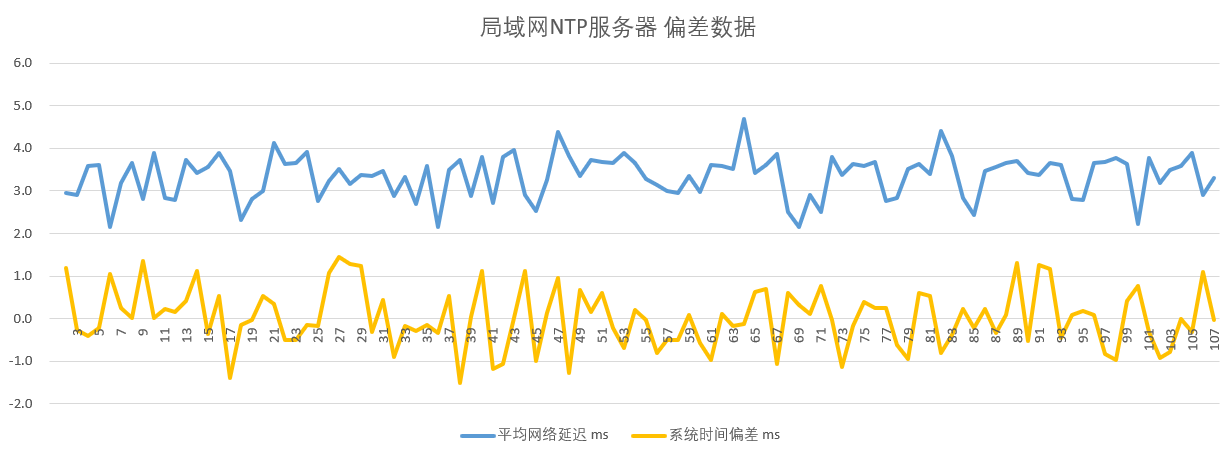
1. LAN NTP Server, Burst Mode Enabled, 1-Minute Synchronization Interval
In nearly 2 hours of test data, network latency remained stable around 3ms, with time offset maintained near 0ms and maximum deviation not exceeding ±2ms.
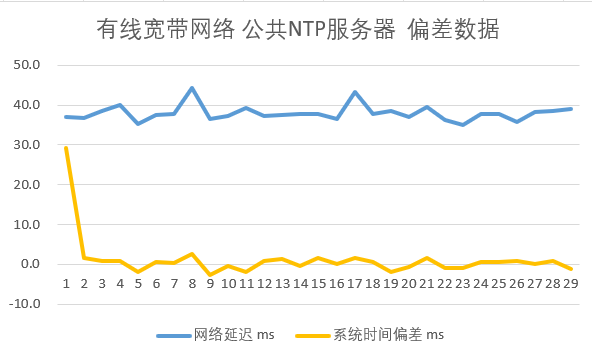
In about 30 minutes of test data, network latency remained stable around 38ms, with time offset controlled within ±3ms (ignoring initial synchronization data with larger system deviations). This broadband network has highly symmetric uplink and downlink, resulting in minimal time offset.
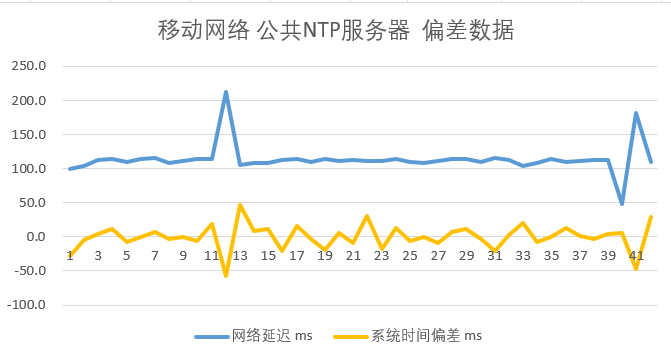
In about 40 minutes of test data, average network latency exceeded 100ms, with occasional significant jumps. As shown, sudden latency changes cause corresponding jumps in synchronization deviation, indicating that network quality critically affects accuracy. In actual use, enable the delay limit function; setting the threshold to 150ms in this environment can effectively filter high-latency outlier data.
4. LAN Server Using GNSS Time Source, Comparing Standard Time with Display Screen Time
Others
Network Latency Display: Optionally display network latency in Area 3, unit: milliseconds (ms).
Screen Second Pulse: Quickly short-press the button 4 times to enter screen second pulse test mode.
LED Indicator: In normal mode, each quick LED flash indicates ongoing NTP synchronization; in Burst mode, flashing is more obvious and intuitive.
Frequently Asked Questions
1. How to make the clock display only the time page without switching?
By default, the clock uses static display out of the factory. If you want page switching, you can configure it in the following path.
With network: Please refer to the [Clock Accuracy] card page.
Without network: The clock uses the Epson RX8010SJ RTC module with a built-in crystal oscillator, factory-calibrated. According to the datasheet, the frequency stability is ±1 minute per month at 25℃.
3. How do I confirm a successful network configuration?
The following indicates a successful network configuration:
① The blue LED on the bottom right of the front panel turns off.
② The network status bar in the WiFi settings page shows normal.
4. Can I use a power bank to power the clock?
It depends on the power bank. The clock has low power consumption, and many power banks may shut off automatically. Use a power bank that supports low-current output.
5. How do I check the current version number?
Displayed in [About & Update] - [Current Version].
6. How long does each synchronization take?
Normally, it takes 6-8 seconds from router connection to time acquisition. If it fails, it may take longer, with up to 6 retry attempts (without strong connection mode enabled).
7. When does synchronization occur?
Synchronization intervals are configurable with no fixed time, starting from power-on. Options: 1 minute/5 minutes/1 hour/1 day.
Note: When milliseconds are displayed, the interval automatically switches to 1 minute.
8. What is the purpose of the coin cell battery?
The clock has an RTC circuit that keeps time even without a network. When powered off, the RTC is powered by this coin cell battery to prevent time loss.
Battery model: CR1220.
9. What does 'Err1' on the display mean?
‘Err1’ indicates the RTC chip has stopped oscillating, causing a time error or loss. Possible causes include battery removal, dead battery, or strong vibration.
Note: If ‘Err1’ appears, it will automatically switch to normal display mode after successful network synchronization.
10. Does a dead coin cell battery affect normal functions?
If the battery is dead, time will be lost after a power outage. In a networked environment, the clock will retrieve time upon power-on, so the impact is minimal with a good network.
The coin cell battery lasts over a year and typically doesn’t need replacement.
11. Why can’t I connect to the router?
① Most often due to an incorrect password; verify the WiFi name and password.
② The clock only supports 2.4G; 5G bands are not supported.
③ For mixed networks (2.4G and 5G with the same name), separate them or enable a guest network to test connectivity.
④ Check if the router has whitelist or anti-leech settings enabled.
⑤ Ensure the IP acquisition method matches the router’s settings, typically DHCP.
⑥ Some corporate networks require MAC address authentication; the clock’s MAC can be modified—consult your IT department.
⑦ Router compatibility issues; known issues with TP-Link WDR5620 series resolved in version 1.7.x—upgrade to 1.7.x+ and enable strong connection mode (System Settings - Router Connection - Strong Connection Mode).
⑧ Router password authentication must be WPA/WPA2; WPA3 is not supported.
⑨ If the router uses a fixed channel, set it to automatic and test connectivity.
12. What’s the difference between normal and strong connection modes?
Path: [System] – [Router Connection]
Normal Mode: The clock connects to the router on power-on or during sync attempts, retrying up to 6 times if disconnected; it won’t reconnect until the next sync if it fails.
Strong Connection Mode: Continuously retries if connection fails, enhancing compatibility.
Default is normal mode, sufficient for most cases. Switch to strong mode if the router frequently disconnects.
13. Why does the display flicker during recording or photography?
The clock uses a scanning display method, causing flicker under cameras, though unnoticeable to the human eye and not affecting use.
For recording, choose a clock with a static display.
14. Location Area (Weather Forecast)
Due to limited display space, only real-time temperature and humidity data are shown.
Default location uses network IP geolocation, which may be inaccurate due to ISP restrictions. Switch to manual input mode with a region code.
Location settings: [System] – [Location Area (Weather Forecast)]
Region code lookup: Use the [Region ID Query] tool in the webpage toolbar.
The clock syncs with the server every 20 minutes.
Note: Currently supports weather data for China (including Hong Kong, Macau, Taiwan); overseas regions will be added based on usage rates.
15. Blue LED status on the bottom right of the front panel
Slow flash (2s cycle): Waiting for WiFi config or WiFi disconnected
Fast flash (1s cycle): Connecting to WiFi
Rapid flash (0.4s cycle): Syncing network time
Constant on: WiFi or time sync failed
Off: Sync successful
Note: LED typically transitions: Slow flash -> Fast flash -> Rapid flash -> Off
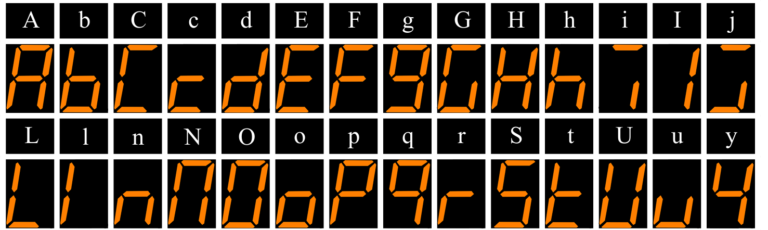
16. English character representation on the clock
Due to 7-segment display limitations, only some numbers and letters are shown, as illustrated below.
Day of the week in English characters:
NOn (MON)
tUE (TUE)
UEd (WED)
tHu (THU)
FrI (FRI)
SAt (SAT)
SUn (SUN)
17. Will the clock be affected if the manufacturer’s server is discontinued?
Core functions do not rely on the manufacturer’s server. Only these features require it:
① Weather forecast data
② Annual statutory holiday data (can be manually set yearly)
③ OTA updates
Thus, the clock remains usable even if the server is discontinued.
18. How do I reset to factory settings?
Two methods:
① Access the configuration interface and select the reset option in [System Settings].
② With power off, hold the red button on the back, then power on. The clock enters factory test mode (white area shows time + green area shows version), resetting all parameters. Power on again to complete.
Note: All settings will be reset and require reconfiguration.
19. Does the voice announcement function rely on the network?
Voice files are stored locally and work offline.
Note: Weather data requires a network; without it, weather announcements are unavailable, but time announcements and alarms are unaffected.
Update Instructions
Automatic push is currently not available. If an upgrade is needed, please manually perform the operation via the web portal:
[Tools] → [Device Upgrade]
Update History
1.7.x - 2026-03-10
After a cross-version upgrade, it is recommended to reset to factory settings before reconfiguring the clock.
Fixed the issue where the device would continuously reboot when the scheduled reboot time was set to 00:00. (Affected versions: 1.4.x, 1.6.x)
Wi-Fi SSIDs in the selection list are now sorted by signal strength from strongest to weakest.
1.6.x - 2026-01-31
Fixed the time error issue during weather broadcast
Updated communication protocol for improved stability
Shortened weather update interval to every 15 minutes
Refactored the core timing logic of the underlying SDK
Reimplemented the NTP client, abandoned the built-in SNTP service of LWIP, and adopted a self-developed solution to significantly improve time synchronization accuracy
Optimized display content and added multiple new information items for display
1.1.x - 2025-05-15
Added Sunday display option: ‘8’.
Added seconds display item for Region 3.
Fixed bug causing occasional weather data retrieval failures.
1.The clock must be connected to the internet for automatic time synchronization. Please follow the instructions below for network setup.
2.Once the clock is successfully connected, you can customize display content, brightness, alarms, etc., based on your needs.
There are two methods to access the settings interface (choose one):
① Connect to the clock’s hotspot (network setup): Strictly follow the network setup steps each time you access the settings.
② LAN IP access: Requires successful prior network setup. See [Downloads] - [Accessing the Clock via LAN IP] for details.
Network Setup Video Tutorial
Clock Network Setup
1. Overview
When entering configuration mode, the clock generates a Wi-Fi hotspot.
Connect to this hotspot using a phone or computer.
Enter the specified IP address in a browser to access the configuration interface.
On the web interface, configure the Wi-Fi network to bind and other parameters.
After completing the settings, save changes and restart the clock to apply the new configuration.
2. Entering Configuration Mode
Press and hold the middle yellow button for 2 seconds to enter configuration mode; you will hear a ‘beep’.
The clock displays a looping animation of [- -] -> [o o], indicating it has entered configuration mode.
In configuration mode, the device creates a Wi-Fi hotspot named IOTTIMER_xxxx.
3. Connecting to the Clock Hotspot
Disable mobile data (cellular network) on your phone.
Connect to the hotspot named IOTTIMER_xxxx using your phone.
The password is 12345678.
4. Wi-Fi Configuration
Upon successful connection, the clock will display the time.
Visit 192.147.10.1 in a browser to access the clock’s main settings menu.
In the network settings interface, select the Wi-Fi name to bind and enter the password.
After configuration, click Save and restart the clock, then wait for it to connect to the network.
5. Verifying Network Connection
Upon successful connection, the blue LED in the bottom right corner of the clock will turn off.
If it remains constantly lit, it indicates a connection failure. Repeat the steps above to access the network settings interface and check the reason for the last failure in the network status bar.
6. Potential Issues During Network Setup
If your phone prompts ‘No internet connection’ after connecting to the clock’s Wi-Fi hotspot, ensure the connection is maintained.
If the page cannot be accessed, disable network optimization features, auto network switching, and network acceleration to prevent automatic disconnection from the hotspot.
In short, after connecting to the hotspot, ignore the no-internet warning, maintain the connection, and disable phone optimization features that may affect connectivity.
Button Operations
Daily Use
1.The LAN IP is assigned by the router and may change over time. To fix the LAN IP, configure MAC address binding in the router’s admin interface.
2.The clock panel is made of acrylic and is not scratch-resistant. After removing the protective film, use a soft cloth (e.g., eyeglass cloth) for daily cleaning to avoid scratches; avoid using tissues or similar materials.
Product Introduction
WHEN Voice Broadcast Edition.
· High-precision time synchronization ensures that, after successful time acquisition, the display switching across multiple devices remains essentially consistent.
· The voice edition offers a variety of alarm sounds and time announcement tones for user selection, with functions such as time announcements and alarms operating normally offline without network dependency.
· Equipped with rich features and flexible settings, it supports customizable display content to meet personalized needs.
· Built-in WEB service eliminates the need for additional apps and imposes no regional restrictions, enabling global use.
· Supports remote online upgrades (OTA) for easy feature expansion and issue resolution.
WHEN Series Comparison
功能项
WHEN
WHEN Voice
Time Synchronization Method
WiFi (2.4G) SNTP
WiFi (2.4G) SNTP
Network Connection Mode
DHCP/Static IP
DHCP/Static IP
NTP
Customizable 2 Groups
Customizable 2 Groups
Global Time Zones
Supported
Supported
Daylight Saving Time
Supported
Supported
Alarm Sound
Buzzer Sound (6 Types)
Voice Broadcast/Music (47 Tracks)
Alarm Mode
Public Holidays/Weekdays/Single/Weekly Cycle
Public Holidays/Weekdays/Single/Weekly Cycle
Number of Alarms
10 Groups
10 Groups
Time Announcement Timing
Hourly/Half-Hourly
Hourly/Half-Hourly
Time Announcement Mode
Buzzer Sound (3 Types)
Voice Broadcast/Bell Sound (10 Types)
Sound Volume
Fixed
30 Levels Adjustable
Automatic Screen Off
Timer/Photosensor/Photosensor+Timer
Timer/Photosensor/Photosensor+Timer
Timer
1min-5h, Button Operation
1min-5h, Button Operation
Brightness Adjustment
11 Levels, Photosensor/Timer/Fixed
11 Levels, Photosensor/Timer/Fixed
Temperature Data
Built-in Sensor + Real-Time Weather
Real-Time Weather
Humidity Data
Real-Time Weather
Real-Time Weather
OTA
Supported
Supported
Feature List
1. Network & Synchronization
Wi-Fi Time Synchronization: Automatic synchronization interval (1m/5m/1h/24h/off)
Synchronization Status Indicator: Blue LED on the bottom right of the front panel
Supports 2 customizable NTP time server addresses
Supports global time zones with configurable automatic daylight saving time
Supports OTA remote update functionality
Configuration interface uses built-in web service, accessible via the clock’s LAN IP
Supports DHCP and static IP settings
Supports modification of its own MAC address
2. Display Settings
Supports dual time zones (primary and secondary) with alternating display
Supports time display in minutes/seconds (0.1s) or hundredths of a second (0.01s)
Display divided into 3 areas, each configurable with different content
Supports alternating display with up to 3 pages, each page duration adjustable from 1-60 seconds
Option to retain or hide leading ‘0’ for time and date
Time display supports 12-hour/24-hour format
Time separator (:) can be set to blink or stay solid
Date format options: MMDD/MM-DD/DDMM/DD-MM
Day of the week format options: Numbers 1-7/Numbers 1-6,0/English-like characters
Temperature unit options: Celsius (°C)/Fahrenheit (°F)
Supports countdown and count-up timers with units: days/hours+minutes+seconds
Supports time offset settings (range: -30 minutes to +30 minutes)
Statutory holiday list automatically retrieved from the network (currently supports Mainland China and Japan); users in other regions can customize holiday lists
Alarm deactivation options: Button/Button + Photosensitive/Ring duration end
Supports count-up/countdown for specific dates and times
Note:
Currently, the weather service is only available in China (including Hong Kong, Macau, and Taiwan). Support for overseas regions will be gradually added based on the usage rate in the clock’s region.
Specifications
Product Name: IOTTIMER CLOCK - WHEN Voice
Product Model: CWT9S20
Clock Dimensions: 178x49x24mm (L x H x D)
Power Interface: TYPE-C (5V⎓1A)
Network Method: WiFi (2.4G)
Synchronization Protocol: SNTP Protocol
Material: ABS, Acrylic, etc.
Operating Temperature: -20°C ~ 60°C
Note: To ensure stable operation, it is recommended to use a power adapter with a rated current of 1A or higher.
During normal operation (without voice announcements), the clock’s current is approximately 30-100 mA, with instantaneous peaks up to 500 mA during network connection.
This clock software focuses on optimizing time synchronization accuracy. The NTP client uses a completely self-developed solution and does not rely on common open-source packages available on the market.
To meet the high-precision needs of professional users, it provides rich advanced configuration options, including: custom primary/backup NTP servers, delay threshold limiting, time acquisition compensation adjustment, Burst mode, etc.
Tests show that under low network latency conditions, system jitter can be stably controlled within 2ms, with overall time synchronization accuracy performing excellently, far superior to the typical NTP synchronization level of ordinary consumer devices (such as computers and mobile phones).
In non-professional measurement scenarios, this device can serve as a reliable high-precision time source of choice.
Related Settings Descriptions
Primary/Backup Servers: Prioritizes the primary server; automatically switches to the backup after multiple failures of the primary.
Delay Limit: Set a delay threshold; data exceeding the threshold is automatically discarded to filter errors from network fluctuations.
Time Acquisition Compensation: Manually fine-tune time offset to compensate for server deviations or display delays; suitable for high-precision needs.
Burst Mode: High-precision rapid time synchronization mode; must be used with a private server; must be disabled on public servers.
Fault Tolerance Mode: Relaxes data validation to allow non-standard data for synchronization; mainly for testing.
Precautions
NTP time synchronization accuracy is affected by multiple factors, including network latency, server quality, client hardware, and system environment, and cannot be absolutely guaranteed by relying solely on a single clock device.
All test data were obtained under specific test conditions and are for reference only; they do not apply to all usage scenarios or network environments.
Please use professional time calibration instruments to evaluate clock accuracy. This clock’s accuracy is far higher than that of ordinary consumer devices (e.g., computers, mobile phones); comparing or evaluating clock accuracy with such devices lacks reference significance.
Accuracy data is based on tests performed with software version 2.1.x.
Review Videos
Accuracy Test Data
1. LAN NTP Server, Burst Mode Enabled, 1-Minute Synchronization Interval
In nearly 2 hours of test data, network latency remained stable around 3ms, with time offset maintained near 0ms and maximum deviation not exceeding ±2ms.
In about 30 minutes of test data, network latency remained stable around 38ms, with time offset controlled within ±3ms (ignoring initial synchronization data with larger system deviations). This broadband network has highly symmetric uplink and downlink, resulting in minimal time offset.
In about 40 minutes of test data, average network latency exceeded 100ms, with occasional significant jumps. As shown, sudden latency changes cause corresponding jumps in synchronization deviation, indicating that network quality critically affects accuracy. In actual use, enable the delay limit function; setting the threshold to 150ms in this environment can effectively filter high-latency outlier data.
4. LAN Server Using GNSS Time Source, Comparing Standard Time with Display Screen Time
Others
Network Latency Display: Optionally display network latency in Area 3, unit: milliseconds (ms).
Screen Second Pulse: Quickly short-press the button 4 times to enter screen second pulse test mode.
LED Indicator: In normal mode, each quick LED flash indicates ongoing NTP synchronization; in Burst mode, flashing is more obvious and intuitive.
Frequently Asked Questions
1. How to make the clock display only the time page without switching?
By default, the clock uses static display out of the factory. If you want page switching, you can configure it in the following path.
With network: Please refer to the [Clock Accuracy] card page.
Without network: The clock uses the Epson RX8010SJ RTC module with a built-in crystal oscillator, factory-calibrated. According to the datasheet, the frequency stability is ±1 minute per month at 25℃.
3. How do I confirm a successful network configuration?
The following indicates a successful network configuration:
① The blue LED on the bottom right of the front panel turns off.
② The network status bar in the WiFi settings page shows normal.
4. Can I use a power bank to power the clock?
It depends on the power bank. The clock has low power consumption, and many power banks may shut off automatically. Use a power bank that supports low-current output.
5. How do I check the current version number?
Displayed in [About & Update] - [Current Version].
6. How long does each synchronization take?
Normally, it takes 6-8 seconds from router connection to time acquisition. If it fails, it may take longer, with up to 6 retry attempts (without strong connection mode enabled).
7. When does synchronization occur?
Synchronization intervals are configurable with no fixed time, starting from power-on. Options: 1 minute/5 minutes/1 hour/1 day.
Note: When milliseconds are displayed, the interval automatically switches to 1 minute.
8. What is the purpose of the coin cell battery?
The clock has an RTC circuit that keeps time even without a network. When powered off, the RTC is powered by this coin cell battery to prevent time loss.
Battery model: CR1220.
9. What does 'Err1' on the display mean?
‘Err1’ indicates the RTC chip has stopped oscillating, causing a time error or loss. Possible causes include battery removal, dead battery, or strong vibration.
Note: If ‘Err1’ appears, it will automatically switch to normal display mode after successful network synchronization.
10. Does a dead coin cell battery affect normal functions?
If the battery is dead, time will be lost after a power outage. In a networked environment, the clock will retrieve time upon power-on, so the impact is minimal with a good network.
The coin cell battery lasts over a year and typically doesn’t need replacement.
11. Why can’t I connect to the router?
① Most often due to an incorrect password; verify the WiFi name and password.
② The clock only supports 2.4G; 5G bands are not supported.
③ For mixed networks (2.4G and 5G with the same name), separate them or enable a guest network to test connectivity.
④ Check if the router has whitelist or anti-leech settings enabled.
⑤ Ensure the IP acquisition method matches the router’s settings, typically DHCP.
⑥ Some corporate networks require MAC address authentication; the clock’s MAC can be modified—consult your IT department.
⑦ Router compatibility issues; known issues with TP-Link WDR5620 series resolved in version 1.7.x—upgrade to 1.7.x+ and enable strong connection mode (System Settings - Router Connection - Strong Connection Mode).
⑧ Router password authentication must be WPA/WPA2; WPA3 is not supported.
⑨ If the router uses a fixed channel, set it to automatic and test connectivity.
12. What’s the difference between normal and strong connection modes?
Path: [System] – [Router Connection]
Normal Mode: The clock connects to the router on power-on or during sync attempts, retrying up to 6 times if disconnected; it won’t reconnect until the next sync if it fails.
Strong Connection Mode: Continuously retries if connection fails, enhancing compatibility.
Default is normal mode, sufficient for most cases. Switch to strong mode if the router frequently disconnects.
13. Why does the display flicker during recording or photography?
The clock uses a scanning display method, causing flicker under cameras, though unnoticeable to the human eye and not affecting use.
For recording, choose a clock with a static display.
14. Location Area (Weather Forecast)
Due to limited display space, only real-time temperature and humidity data are shown.
Default location uses network IP geolocation, which may be inaccurate due to ISP restrictions. Switch to manual input mode with a region code.
Location settings: [System] – [Location Area (Weather Forecast)]
Region code lookup: Use the [Region ID Query] tool in the webpage toolbar.
The clock syncs with the server every 20 minutes.
Note: Currently supports weather data for China (including Hong Kong, Macau, Taiwan); overseas regions will be added based on usage rates.
15. Blue LED status on the bottom right of the front panel
Slow flash (2s cycle): Waiting for WiFi config or WiFi disconnected
Fast flash (1s cycle): Connecting to WiFi
Rapid flash (0.4s cycle): Syncing network time
Constant on: WiFi or time sync failed
Off: Sync successful
Note: LED typically transitions: Slow flash -> Fast flash -> Rapid flash -> Off
16. English character representation on the clock
Due to 7-segment display limitations, only some numbers and letters are shown, as illustrated below.
Day of the week in English characters:
NOn (MON)
tUE (TUE)
UEd (WED)
tHu (THU)
FrI (FRI)
SAt (SAT)
SUn (SUN)
17. Will the clock be affected if the manufacturer’s server is discontinued?
Core functions do not rely on the manufacturer’s server. Only these features require it:
① Weather forecast data
② Annual statutory holiday data (can be manually set yearly)
③ OTA updates
Thus, the clock remains usable even if the server is discontinued.
18. How do I reset to factory settings?
Two methods:
① Access the configuration interface and select the reset option in [System Settings].
② With power off, hold the red button on the back, then power on. The clock enters factory test mode (white area shows time + green area shows version), resetting all parameters. Power on again to complete.
Note: All settings will be reset and require reconfiguration.
19. Does the voice announcement function rely on the network?
Voice files are stored locally and work offline.
Note: Weather data requires a network; without it, weather announcements are unavailable, but time announcements and alarms are unaffected.
Update Instructions
Automatic push is currently not available. If an upgrade is needed, please manually perform the operation via the web portal:
[Tools] → [Device Upgrade]
Update History
1.7.x2026-03-10
After a cross-version upgrade, it is recommended to reset to factory settings before reconfiguring the clock.
Fixed the issue where the device would continuously reboot when the scheduled reboot time was set to 00:00. (Affected versions: 1.4.x, 1.6.x)
Wi-Fi SSIDs in the selection list are now sorted by signal strength from strongest to weakest.
1.6.x2026-01-31
Fixed the time error issue during weather broadcast
Updated communication protocol for improved stability
Shortened weather update interval to every 15 minutes
Refactored the core timing logic of the underlying SDK
Reimplemented the NTP client, abandoned the built-in SNTP service of LWIP, and adopted a self-developed solution to significantly improve time synchronization accuracy
Optimized display content and added multiple new information items for display
1.1.x2025-05-15
Added Sunday display option: ‘8’.
Added seconds display item for Region 3.
Fixed bug causing occasional weather data retrieval failures.