


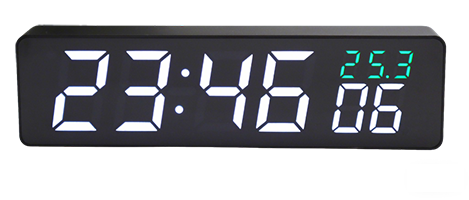
WHEN
- High precision
- multifunctional
- stable and practical
- Holiday/Workday alarm modes
- rich customization options
- automatic brightness adjustment
- auto screen-off
- Supports OpenClaw
- User Guide
- Features
- Specs
- Downloads
- Accuracy
- FAQ
- Update History
- Videos
Precautions
1.The clock must be connected to the internet for automatic time synchronization. Please follow the instructions below to configure the network.
2.After successfully connecting to the internet, you can customize the display content, brightness, alarms, etc., based on your needs.
There are two methods to access the settings interface (choose one):
① Connect to the clock’s hotspot (network configuration): Each time you access the settings, strictly follow the network configuration steps.
② LAN IP access: Requires successful prior network configuration. See [Downloads] - [Accessing the Clock via LAN IP] for details.
Network Configuration Video Tutorial
Clock Network Configuration
1. Overview
- When the clock enters configuration mode, it generates a Wi-Fi hotspot
- Connect to this hotspot using a phone or computer
- Enter the specified IP address in a browser to access the configuration interface
- On the web interface, set the Wi-Fi to bind and other parameters
- After completing the settings, save the changes and restart the clock to apply the new configuration
2. Enter Configuration Mode
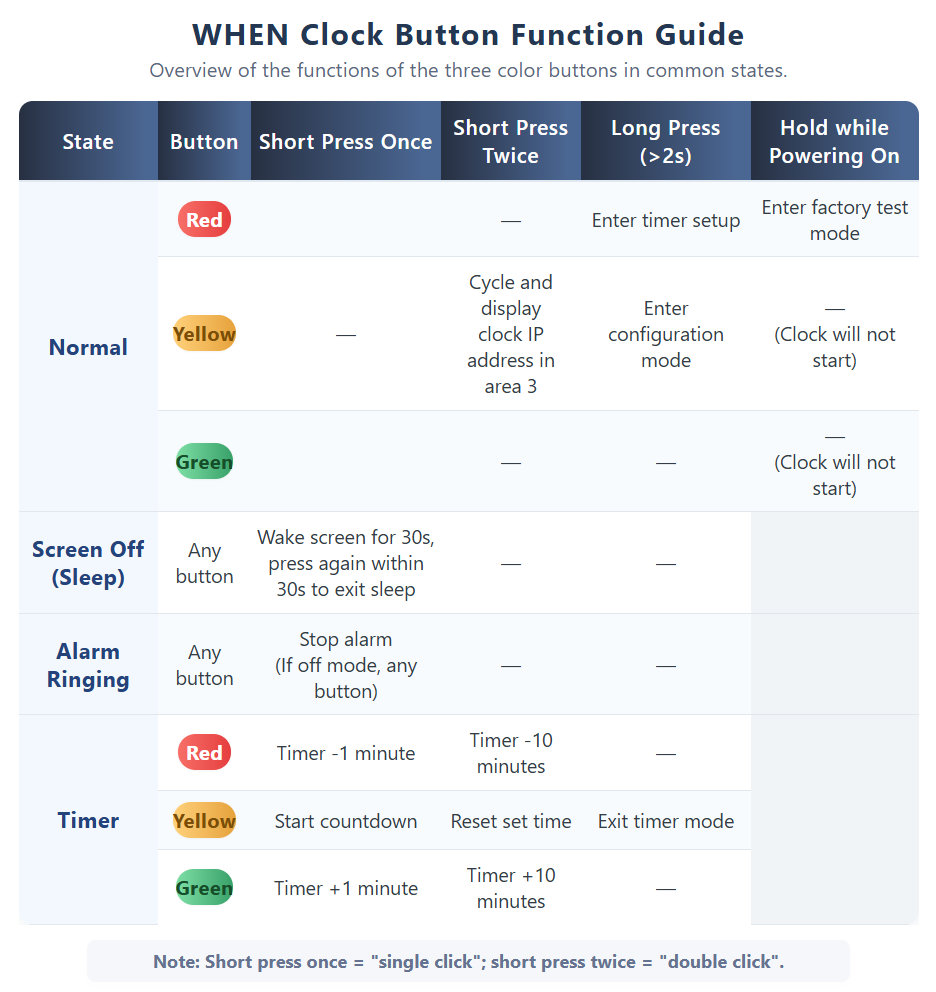
- Press and hold the middle yellow button for 2 seconds to enter configuration mode; you will hear a ‘beep’
- The clock displays a [- -] -> [o o] loop animation, indicating it has entered configuration mode
- In configuration mode, the device creates a Wi-Fi hotspot named IOTTIMER_xxxx
3. Connect to the Clock’s Hotspot
- Turn off mobile data (cellular network) on your phone
- Connect to the hotspot named IOTTIMER_xxxx using your phone
- The password is 12345678
4. Wi-Fi Information Configuration
- After a successful connection, the clock will display the time
- Enter 192.147.10.1 in a browser to access the clock’s settings main menu
- In the network settings interface, select the Wi-Fi name to bind and enter the password
- After completing the settings, click Save and restart the clock; wait for it to connect to the network
5. Confirm Network Connection Success
- When the network connection is successful, the blue LED in the bottom right corner of the clock will turn off
- If it stays on, the connection has failed. Repeat the above steps to access the network settings interface and check the reason for the last failure in the network status bar
6. Possible Issues During Network Configuration
- If your phone shows ‘No network connection’ after connecting to the clock’s Wi-Fi hotspot, ensure the connection to the hotspot is maintained
- If the page cannot be accessed, disable network optimization features, auto network switching, and network acceleration to prevent automatic disconnection from the hotspot
- In short, after connecting to the hotspot, ignore the no-network warning, maintain the connection, and disable phone optimization features that may affect it
Button Operations
Daily Use
1.The LAN IP is assigned by the router and may change over time. To fix the LAN IP, you can set MAC address binding in the router’s admin interface.
2.The clock’s panel is made of acrylic, which is not scratch-resistant. After removing the protective film, use a soft cloth (e.g., glasses cloth) for daily cleaning to avoid scratches; avoid using tissues or similar materials.
Product Introduction
Upgraded and optimized based on LittleGreen2.
· High-precision time synchronization: After successful time acquisition, the display switching and chime sounds of multiple devices remain consistent.
· Rich features and flexible settings, supporting customizable display content to meet individual needs.
· Built-in WEB service, no additional app required, eliminating concerns about product usability due to unmaintained manufacturer servers; usable worldwide without regional restrictions.
· Supports remote online upgrades (OTA) for easy feature expansion and issue fixes.
WHEN Series Comparison
| 功能项 | WHEN | WHEN Voice |
|---|---|---|
| Time Synchronization Method | WiFi (2.4G) SNTP | WiFi (2.4G) SNTP |
| Network Connection Mode | DHCP/Static IP | DHCP/Static IP |
| NTP | Customizable 2 Groups | Customizable 2 Groups |
| Global Time Zones | Supported | Supported |
| Daylight Saving Time | Supported | Supported |
| Alarm Sound | Buzzer Sound (6 Types) | Voice Broadcast/Music (47 Tracks) |
| Alarm Mode | Public Holidays/Weekdays/Single/Weekly Cycle | Public Holidays/Weekdays/Single/Weekly Cycle |
| Number of Alarms | 10 Groups | 10 Groups |
| Time Announcement Timing | Hourly/Half-Hourly | Hourly/Half-Hourly |
| Time Announcement Mode | Buzzer Sound (3 Types) | Voice Broadcast/Bell Sound (10 Types) |
| Sound Volume | Fixed | 30 Levels Adjustable |
| Automatic Screen Off | Timer/Photosensor/Photosensor+Timer | Timer/Photosensor/Photosensor+Timer |
| Timer | 1min-5h, Button Operation | 1min-5h, Button Operation |
| Brightness Adjustment | 11 Levels, Photosensor/Timer/Fixed | 11 Levels, Photosensor/Timer/Fixed |
| Temperature Data | Built-in Sensor + Real-Time Weather | Real-Time Weather |
| Humidity Data | Real-Time Weather | Real-Time Weather |
| OTA | Supported | Supported |
Feature List
1. Network & Time Sync
- Wi-Fi time synchronization: Automatic sync intervals (1m/5m/1h/24h/off)
- Sync status indicator: Blue LED at bottom right of the front panel
- Supports 2 sets of NTP time server addresses (user-customizable)
- Supports global time zones with configurable automatic daylight saving time
- Supports OTA remote online upgrade function
- Configuration interface uses built-in WEB service, accessible via the clock’s LAN IP
- Supports DHCP and static IP settings
- Supports modifying its own MAC address
2. Display Settings
- Supports dual time zones (primary and secondary) alternating display
- Supports time display in minutes and seconds (0.1s) or hundredths of a second (0.01s)
- Display divided into 3 zones, each configurable with different content
- Supports alternating display with up to 3 pages, each page duration settable from 1-60 seconds
- For time and date starting with ‘0’, option to keep or hide the ‘0’
- Time display supports 12-hour/24-hour format
- Time separator (:) can be set to blink or stay solid
- Date format options: MMDD/MM-DD/DDMM/DD-MM
- Day of the week format options: numbers 1-7/numbers 1-6,0/English-like characters
- Temperature unit options: Celsius (°C)/Fahrenheit (°F)
- Supports displaying countdown and count-up timers, units: days/hours+minutes+seconds
- Time offset configurable (range: -30 to +30 minutes)
3. Brightness Adjustment
- Brightness levels adjustable from 1-11
- Dimming modes: auto light-sensing/scheduled/fixed brightness
- Light-sensing parameters configurable with a dedicated debugging interface for various ambient light conditions
4. Alarm
- Up to 10 alarm groups can be set
- Alarm buzzer sound and duration selectable
- Supports 4 alarm modes: one-time/weekday schedule/statutory workdays/statutory holidays
- Statutory holiday list automatically fetched from the network (currently supports mainland China and Japan); users in other regions can customize holiday lists
- Alarm deactivation options: button/button+light sensor/duration end
- Brightness difference threshold for light-sensor alarm deactivation configurable
5. Timer
- Set countdown via buttons
- Countdown range: 1 minute to 5 hours
- Buzzer sound selectable upon countdown completion
- Countdown completion buzzer duration configurable
6. Auto Screen-Off (Sleep)
- Supports 3 sleep modes: scheduled/light-sensing/scheduled+light-sensing
- Light-sensing threshold configurable; screen off below threshold, on above threshold
- Sleep delay configurable (e.g., screen off 30 seconds after lights out)
- Sleep can be scheduled by day of the week
- Sleep wake-up mechanism: any button wakes for 30 seconds; pressing again during this period ends the sleep session
7. Chime
- Hourly/half-hourly chime (similar to radio broadcasts)
- Half-hour chime is a single ‘beep’; hourly chime offers 3 modes
- Chime can be scheduled by day of the week and time
8. Others
- Settings interface language: Simplified Chinese/Traditional Chinese/English/Japanese
- Supports configurable timed auto-restart
- Supports time sync with phone/computer
- Supports count-up/countdown for specific dates and times
Specifications
- Product Name: IOTTIMER CLOCK - WHEN
- Product Model: CWT9S18/CWT9S19
- Clock Dimensions: 178x49x24mm (L x H x D)
- Power Interface: TYPE-C (5V⎓1A)
- Network Connection: WiFi (2.4G)
- Time Sync Protocol: SNTP Protocol
- Material: ABS, Acrylic, etc.
- Operating Temperature: -20°C ~ 60°C
Note: To ensure stable operation, it is recommended to use a power adapter with a rated current of 1A or higher.
During normal operation, the clock’s current is approximately 30-100 mA, with instantaneous peak currents up to 500 mA during networking.







Overview
This clock software focuses on optimizing time synchronization accuracy. The NTP client uses a completely self-developed solution and does not rely on common open-source packages available on the market.
To meet the high-precision needs of professional users, it provides rich advanced configuration options, including: custom primary/backup NTP servers, delay threshold limiting, time acquisition compensation adjustment, Burst mode, etc.
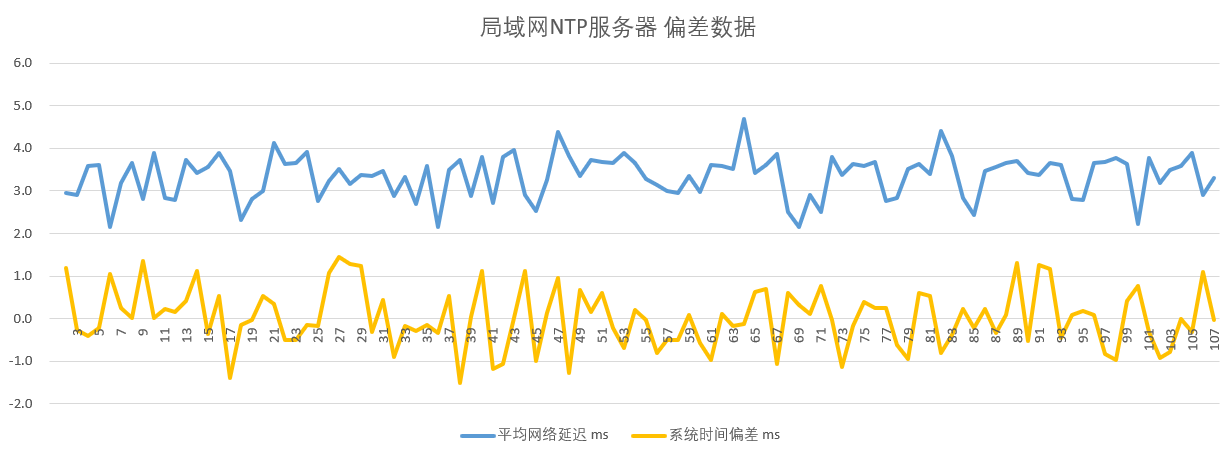
Tests show that under low network latency conditions, system jitter can be stably controlled within 2ms, with overall time synchronization accuracy performing excellently, far superior to the typical NTP synchronization level of ordinary consumer devices (such as computers and mobile phones).
In non-professional measurement scenarios, this device can serve as a reliable high-precision time source of choice.
Related Settings Descriptions
- Primary/Backup Servers: Prioritizes the primary server; automatically switches to the backup after multiple failures of the primary.
- Delay Limit: Set a delay threshold; data exceeding the threshold is automatically discarded to filter errors from network fluctuations.
- Time Acquisition Compensation: Manually fine-tune time offset to compensate for server deviations or display delays; suitable for high-precision needs.
- Burst Mode: High-precision rapid time synchronization mode; must be used with a private server; must be disabled on public servers.
- Fault Tolerance Mode: Relaxes data validation to allow non-standard data for synchronization; mainly for testing.
Precautions
- NTP time synchronization accuracy is affected by multiple factors, including network latency, server quality, client hardware, and system environment, and cannot be absolutely guaranteed by relying solely on a single clock device.
- All test data were obtained under specific test conditions and are for reference only; they do not apply to all usage scenarios or network environments.
- Please use professional time calibration instruments to evaluate clock accuracy. This clock’s accuracy is far higher than that of ordinary consumer devices (e.g., computers, mobile phones); comparing or evaluating clock accuracy with such devices lacks reference significance.
- Accuracy data is based on tests performed with software version 2.1.x.
Review Videos
Accuracy Test Data
1. LAN NTP Server, Burst Mode Enabled, 1-Minute Synchronization Interval
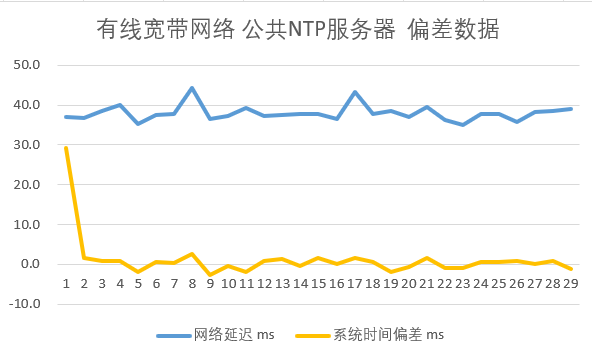
2. Public NTP Server, Burst Mode Disabled, 1-Minute Synchronization Interval (Wired Broadband)
3. Public NTP Server, Burst Mode Disabled, 1-Minute Synchronization Interval (Mobile Network)
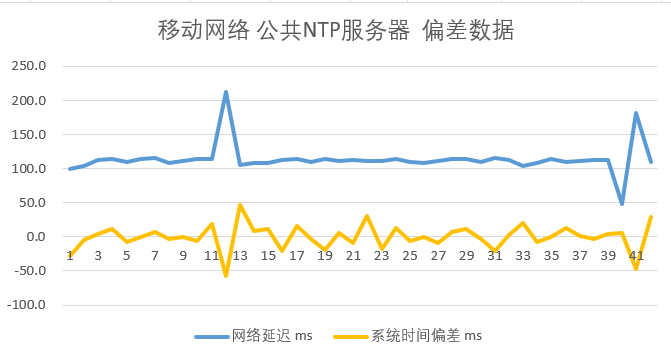
4. LAN Server Using GNSS Time Source, Comparing Standard Time with Display Screen Time
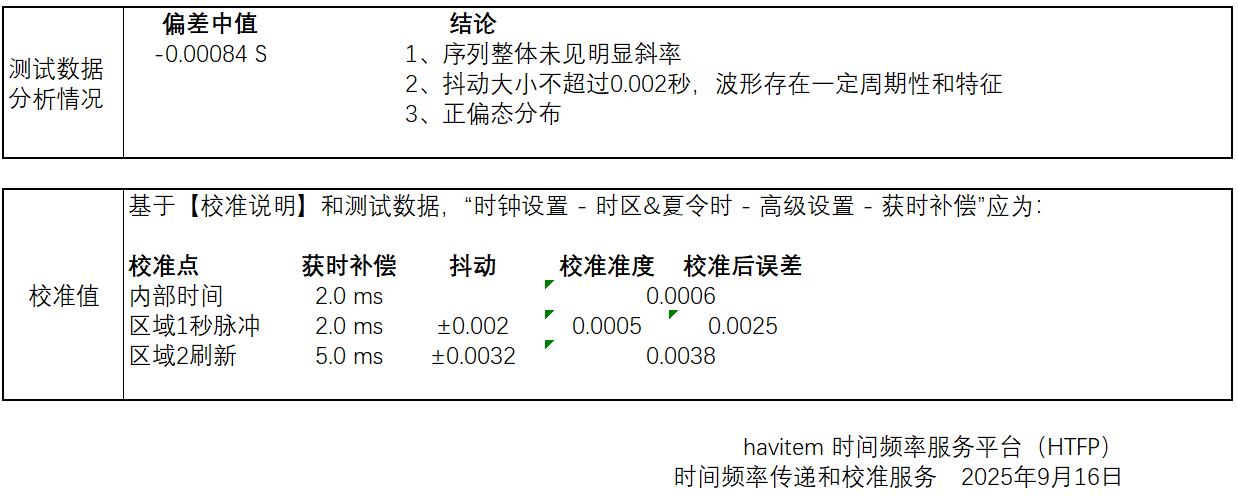
Others
- Network Latency Display: Optionally display network latency in Area 3, unit: milliseconds (ms).
- Screen Second Pulse: Quickly short-press the button 4 times to enter screen second pulse test mode.
- LED Indicator: In normal mode, each quick LED flash indicates ongoing NTP synchronization; in Burst mode, flashing is more obvious and intuitive.
Frequently Asked Questions
1. How to make the clock display only the time page without switching?
2. Clock Timekeeping Accuracy?
3. How to confirm successful network configuration?
4. Can it be powered by a power bank?
5. How to check the current version number?
6. How long does each time sync take?
7. When does it sync time?
8. What is the purpose of the coin cell battery?
9. What does 'Err1' on the display mean?
10. Does a dead coin cell battery affect normal functions?
11. Unable to connect to the router?
12. What’s the difference between normal mode and strong connection mode for router connection?
13. Flickering when filming or photographing?
14. About temperature error explanation
15. Location (Weather Forecast)
16. Front bottom-right blue LED status explanation
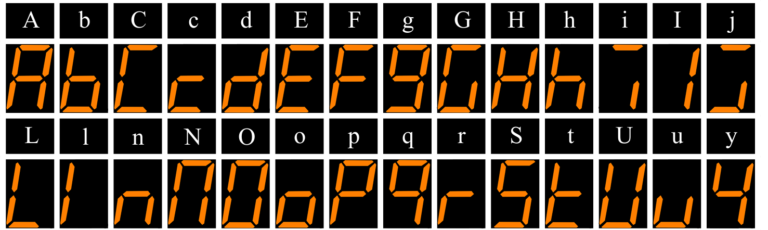
17. Clock English character representation
18. Will the clock be affected if the manufacturer’s server is discontinued?
19. How to reset to factory settings?
20. Internal Temperature Sensor Compensation Settings Explanation
21. Authentication Login Function
Upgrade Notes
Automatic push is currently not available. If an upgrade is needed, please manually perform the operation via the web portal:
[Tools] → [Device Upgrade]
Update History
-
2.4.x - 2026-03-05
After a successful cross-version upgrade, it is recommended to reset to factory settings before reconfiguring the clock.
Fixed the issue where the device would reboot continuously when the scheduled reboot time was set to 00:00. (Affects versions 2.1.x, 2.2.x)
SSIDs in the Wi-Fi selection list are sorted by signal strength from strongest to weakest.
Added an ‘Information’ icon to the right of the Wi-Fi list. Clicking it displays detailed information about the currently selected AP (including BSSID, channel, encryption method, signal strength, etc.).
Added ‘Router Binding’ feature.
Purpose: When multiple APs share the same SSID, you can bind to a specific AP instead of connecting randomly.
Default: Disabled (automatic connection to any AP with the same SSID is allowed).
Binding basis: AP’s MAC address (BSSID).
Notes:
• Mobile hotspots often change their BSSID every time they are turned on.
• The BSSID of guest networks on some routers may change frequently.
• If Router Binding is enabled, you must restart the clock after disabling it for the changes to take full effect.
-
2.3.x - 2026-02-25
After a successful cross-version upgrade, it is recommended to perform a factory reset first, then reconfigure the clock.
Changed communication protocol — more stable than before
Shortened the weather fetch cycle from server for the clock to once every 20 minutes
Optimized the factory reset logic triggered by buttons
-
2.2.x - 2026-01-30
Fixed the issue where daylight saving time transitions across year-end would fail. If your use case does not involve daylight saving time, or the DST start/end times do not cross the year boundary, upgrading to this version is not necessary.
-
2.1.x - 2025-09-05
See details: https://iottimer.com/news/20250906-version-release/
Refactored the core timing logic of the underlying SDK
Reimplemented the NTP client, abandoned the built-in SNTP service of LWIP, and adopted a self-developed solution to significantly improve time synchronization accuracy
Optimized display content and added multiple new information items for display
-
2.0.x - 2025-05-15
Version 2.0 includes many changes, requiring some parameters to be reset after the upgrade
See details: https://iottimer.com/news/20250515-when-version-release/
Redesigned WEB backend interface with optimized layout and display for a more appealing look.
Added optional password login feature, disabled by default. Configure via [System] – [Security Login Settings].
Introduced internal temperature sensor calibration function. Access via [System] – [Internal Temperature Sensor Settings].
Added Sunday display option: ‘8’.
Added seconds display mode for Region 3.
Added quarter-hour chime with 100ms short tone; customizable buzzer for half-hour/quarter-hour chimes.
Optimized network configuration logic for improved connection stability.
Fixed bug causing occasional weather data retrieval failures; updated fetch cycle to once every 30 minutes.
Resolved photosensitive brightness adjustment issue.
-
1.9.x - 2025-04-28
The lunar calendar error only impacts April and will return to normal after May (May 27).
If you don’t use the lunar calendar, you can skip this update and wait for version 2.0.x.
Fixed a bug in lunar calendar calculations
-
1.8.x - 2025-02-24
Strongly recommended for clocks on version 1.7.A.
Other versions can wait for 2.0. If the clock restarts repeatedly after setting brightness, power off, hold the red button on the back, then power on. The clock will show time + version, resetting to factory settings. Power off, restart, reconfigure the network, and upgrade to the latest version after success.
Version 1.7.A clocks will receive an upgrade prompt; go to [About & Upgrade] – [Update Firmware] to upgrade.
Fixed bug in 1.7.A where certain brightness parameter combinations (e.g., min brightness ≥ max brightness) caused continuous restarts;
Optimized dimming logic to prevent screen brightness changes from light fluctuating near the threshold;
Optimized alarm judgment to fix scenarios where multiple alarms are set, auto-sync occurs near an alarm time with a time deviation, and the alarm is skipped after correction;
Modified factory test logic for easier testing.
-
1.7.x - 2024-12-10
Added real-time weather temperature and humidity data displayable in Zone 3; see FAQ – 15. Location (Weather Forecast);
Revised daylight saving time settings interface and improved DST logic;
Refactored network code for better router compatibility, allowing simultaneous server communication for time sync in AP and web service mode;
Updated network settings interface: WiFi list refresh in config mode, direct target WiFi testing, password masked with ***;
Added short hourly chime sound (200ms);
Modified Zone 3 weekday character display; see FAQ – 17. Clock English Character Representation;
Added custom display mode for Zone 3 for specific content, e.g., time zone identifiers;
Updated front indicator light logic; see FAQ – 16. Front Bottom-Right Blue LED Status Explanation;
Modified factory test display content for easier testing.
-
1.6.x - 2024-06-06
Fixed 12-hour format 0:00 display error;
Fixed abnormal sleep light-sensing threshold;
Added weekday display in Zone 2;
Added 1 (Sunday)-7 (Saturday) weekday display mode;
Adjusted temperature compensation: -2.5°C when measured temperature exceeds 25°C;
Set factory test brightness to maximum;
High brightness for 15 seconds on startup before reverting to normal dimming;
Auto-refresh browser after saving language settings, no manual refresh needed;
Fixed alarm time overflow save issue; reconfigure parameters after upgrade.
-
1.5.x - 2024-03-25
Fixed continuous restart after factory reset or incorrect SSID input;
Fixed incorrect year display;
Fixed alarm not stopping via button in button/light-sensor mode.
-
1.4.x - 2024-03-22
Fixed alarm time overflow save issue; reconfigure parameters after upgrade.
-
1.3.x - 2024-03-12
Fixed alarm save issue on iPhones;
Fixed Zone 2 display parameter selection error;
-
1.2.x - 2024-02-28
Fixed default parameter initialization error, disabled log output
-
1.1.x - 2024-02-19
Initial version
WHEN Clock Related Videos
- Network Setup Tutoria
- Accuracy Consistency Test