① Ensure the power supply voltage is between 4.8V and 5.2V, with a current capacity of no less than 2A.
② Prepare a 2.4G Wi-Fi network environment for the clock to connect to the internet.
③ Prepare a smartphone or laptop for device network configuration.
④ Please read the product manual and FAQ carefully for detailed information.
Precautions
1.The device can only automatically synchronize time after connecting to the network. Please refer to the network configuration instructions below.
2.After successful networking, you can set time announcements, alarms, etc. according to your needs.
There are two ways to access the settings interface (choose one):
① Connect to the device hotspot (for configuration): You must strictly follow the configuration steps every time you enter the settings interface.
② Access via LAN IP: This requires successful network configuration first. See the intranet access instructions for details.
Network Configuration Instructions
1. Overview
When the device enters configuration mode, it will create a Wi-Fi hotspot
Connect your phone or computer to this hotspot
Enter the specified IP address in the browser to access the configuration interface
On the web interface, set the Wi-Fi to connect to and other parameters
After completing the settings, save changes and restart the device to apply the new configuration
2. Enter Configuration Mode
Long press the onboard button for 2 seconds to enter configuration mode
There will be a voice prompt after entering configuration mode
In configuration mode, the device will create a Wi-Fi hotspot named IOTTIMER_xxxx
3. Connect to Device Hotspot
Turn off mobile data (cellular network) on your phone
Connect your phone to the hotspot named IOTTIMER_xxxx
Password is 12345678
4. Wi-Fi Information Configuration
After successful connection, there will be a voice prompt
Access 192.147.10.1 in the browser to enter the main settings menu
In the network settings interface, select the target Wi-Fi name and enter the password
After setting, click Save and Restart the clock, then wait for the device to connect to the network
5. Confirm Successful Network Connection
There will be a voice prompt after the first successful network connection
Press the button once to check if the time announcement is correct
If the matching display screen is connected, corresponding information will be shown
6. Possible Issues During Configuration
If the phone shows “No Internet connection” after connecting to the device Wi-Fi hotspot, please keep the connection to the hotspot
If the page cannot be accessed, disable network optimization, automatic network switching, and network acceleration features to prevent automatic disconnection from the hotspot.
In short, after connecting to the hotspot, ignore the no-network warning, maintain the connection, and disable any phone optimization features that may interfere.
Audio Storage Instructions
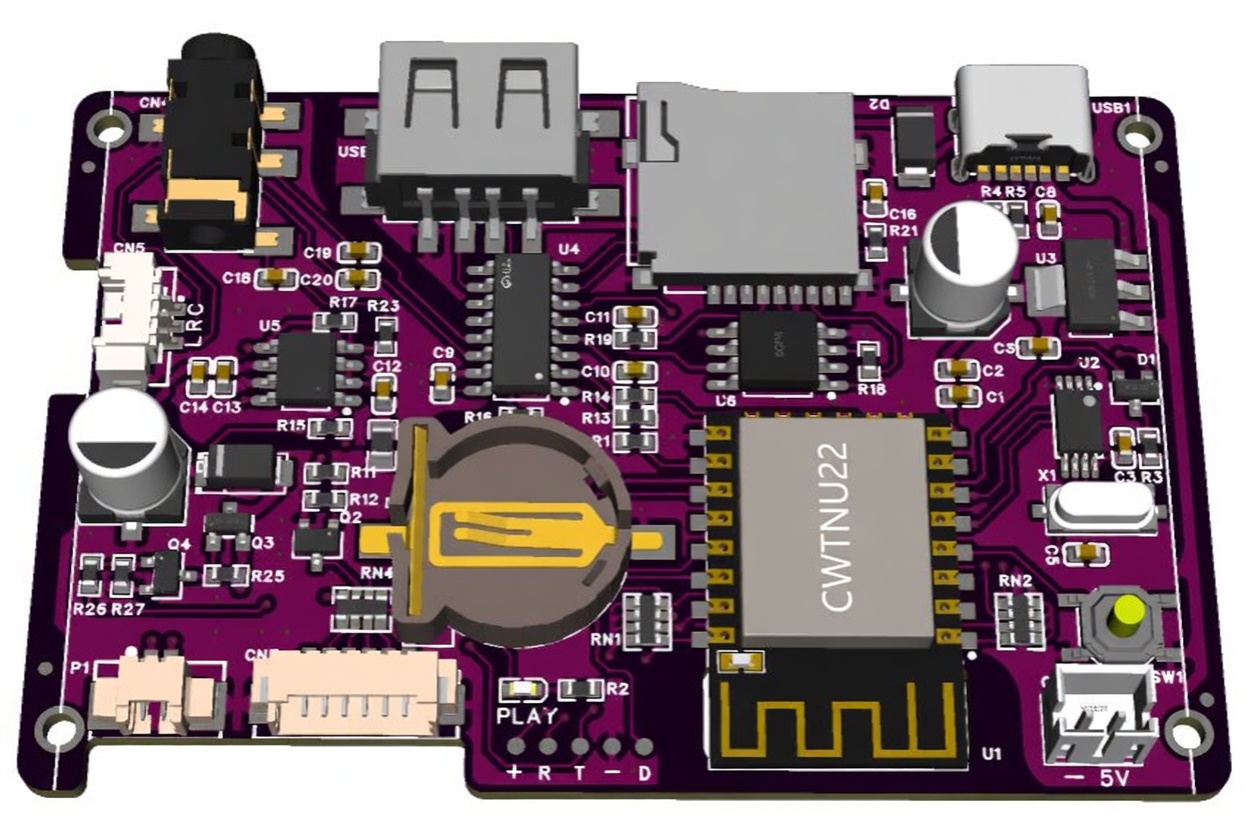
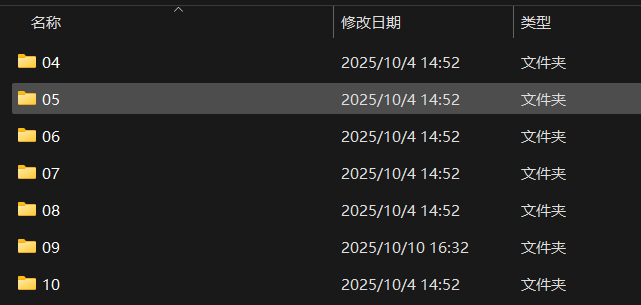
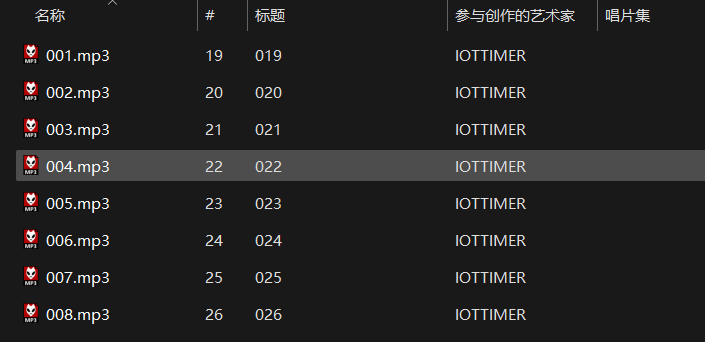
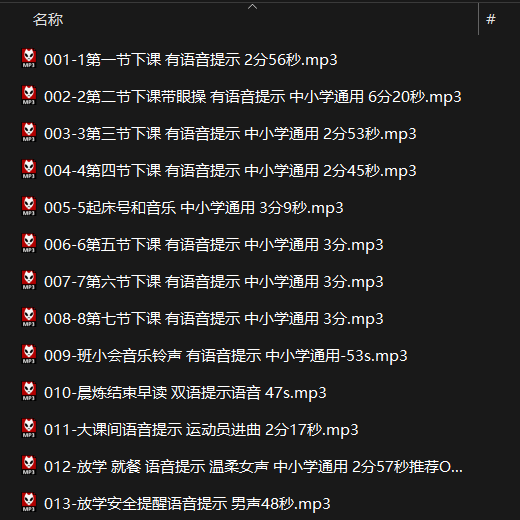
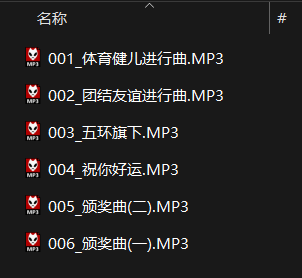
The core board has built-in audio for time announcements and basic alarms. It also supports audio playback from TF cards and USB drives.
Capacity and File System:
① Maximum supported capacity: 32GB
② File system: FAT32
Audio Formats:
① Supported formats: MP3 and WAV
② Supports all bitrates of MPEG-1/2 Layer III (MP3) decoding
Voice announcement supports tone selection (Chinese×2, English×1), 12/24-hour format
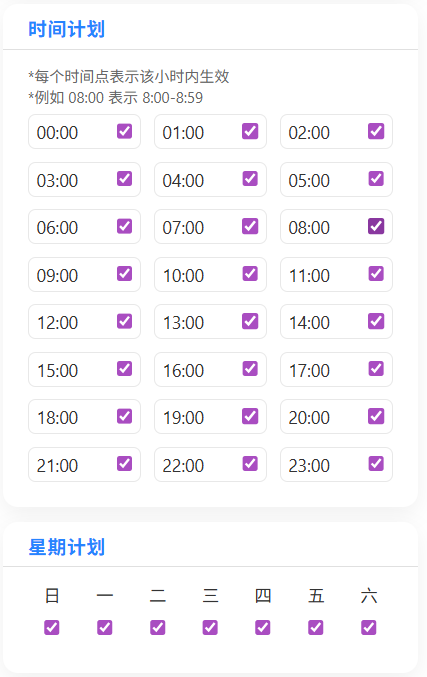
Time announcement schedule supports time-point plan and weekly plan, with optional holiday skip
Support pre-announcement prompt tone
Independent 30-level volume control
4. Other Features
Configuration interface supports Simplified Chinese / Traditional Chinese / English / Japanese
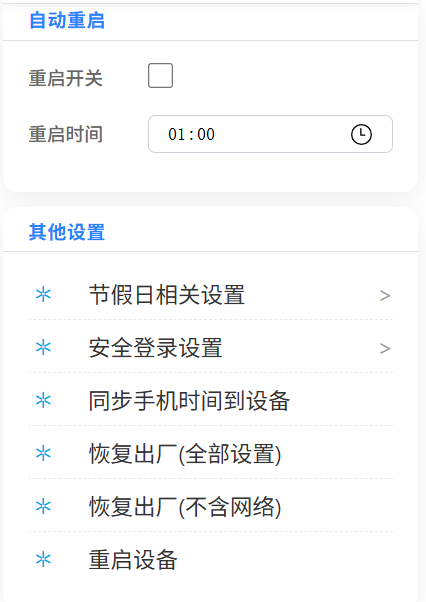
Support scheduled auto-restart
Sync time from phone or computer to the clock
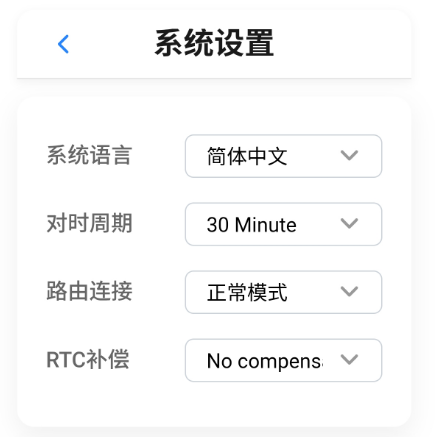
RTC hardware drift compensation (supported on BL5372T)
Detailed Explanation of Selected Features
Most settings are self-explanatory through the interface. A few special items are explained in detail below with reference to the interface.
Note: Due to software updates, some page displays may vary.
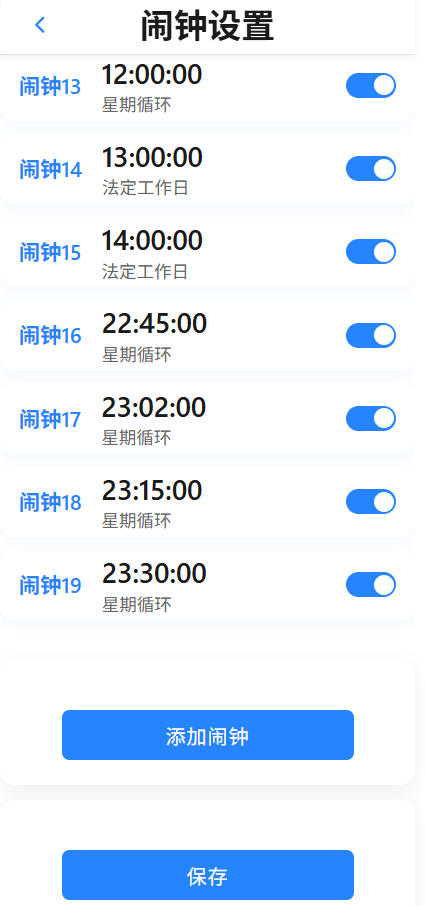
1.Alarm list is sorted by ringing time. Click any entry to enter its detailed settings page.
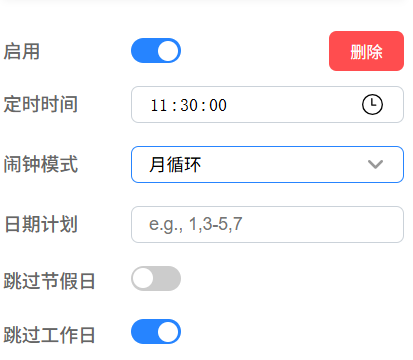
2.Alarm Mode (Monthly Recurring)
Rings on specific dates each month. Can be combined with the following filters:
• Skip Holidays: Skip all statutory rest days (including regular weekends + statutory holidays)
• Skip Workdays: Skip all days that require work (workdays + adjusted work weekends)
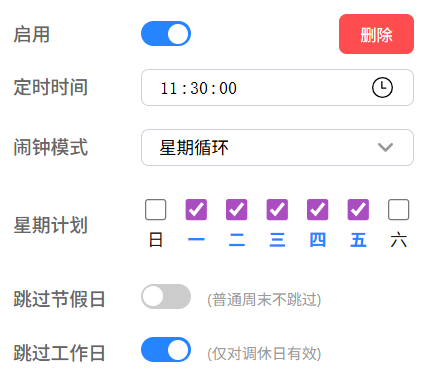
3.Alarm Mode (Weekly Recurring)
Rings on selected days of the week. Can be combined with the following filters:
• Skip Holidays: Skip only statutory holidays (regular weekends are not skipped; if Saturday/Sunday is selected and it is not a statutory holiday, it will still ring)
• Skip Workdays: Skip only adjusted work weekends (work-required Saturdays/Sundays)
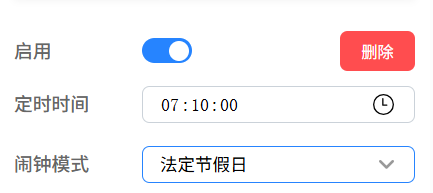
4.Alarm Mode (Statutory Holidays)
Rings only on “days off”, including:
• All statutory holidays (regardless of weekday)
• Regular weekends (Saturday/Sunday, if not adjusted work days)
Summary: Rings on any normal day off (statutory or regular weekend). Suitable for users who want to be woken on weekends and statutory holidays.
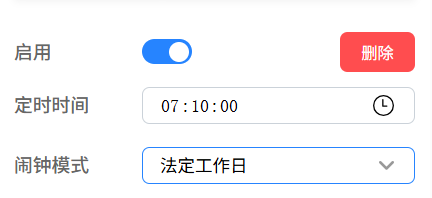
5.Alarm Mode (Statutory Workdays)
Rings only on statutory workdays.
• Includes: Normal workdays + adjusted work weekends
• Excludes: Regular weekends + statutory holidays
• Suitable for users who strictly follow the official work schedule.
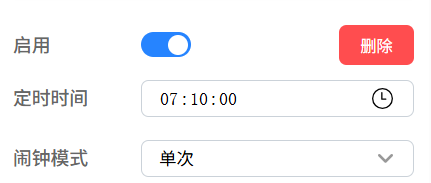
6.Alarm Mode (One-time)
Rings only once. After triggering, the alarm is automatically turned off (the alarm entry remains and can be manually re-enabled). Suitable for one-time reminders, temporary early rises, etc.
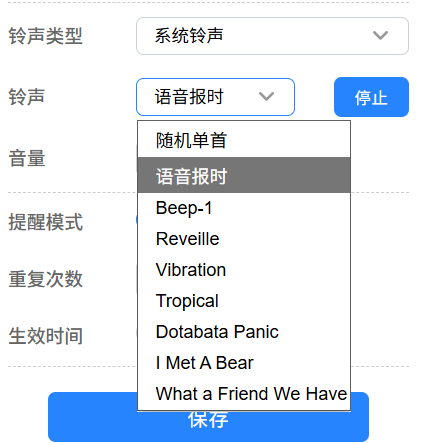
7.Select ringtone (system ringtones)
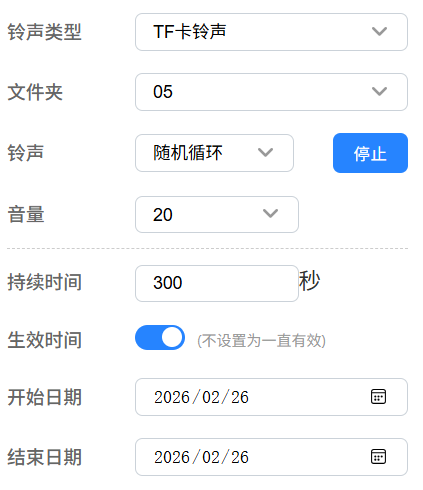
8.Other alarm settings
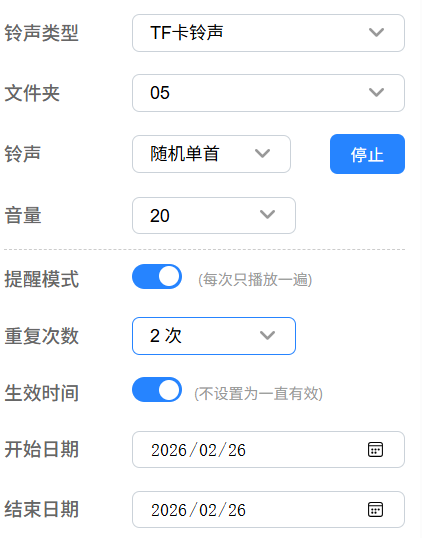
9.Other alarm settings
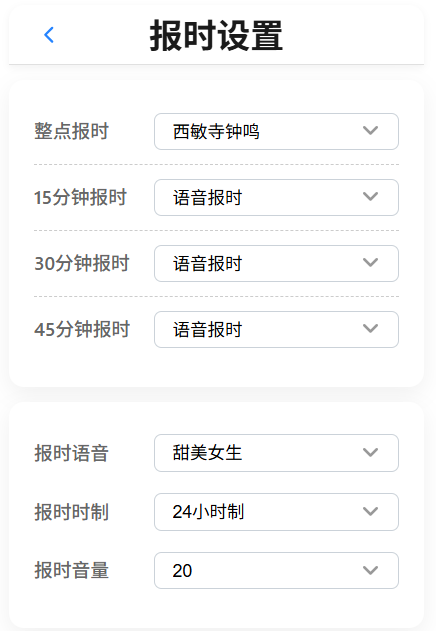
10.Time announcement ringtone settings
11.Time announcement schedule settings
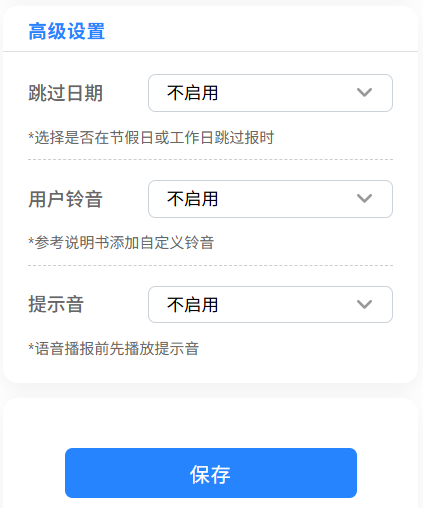
12.Advanced time announcement settings
13.System Settings 1
14.System Settings 2
1. Interface Overview
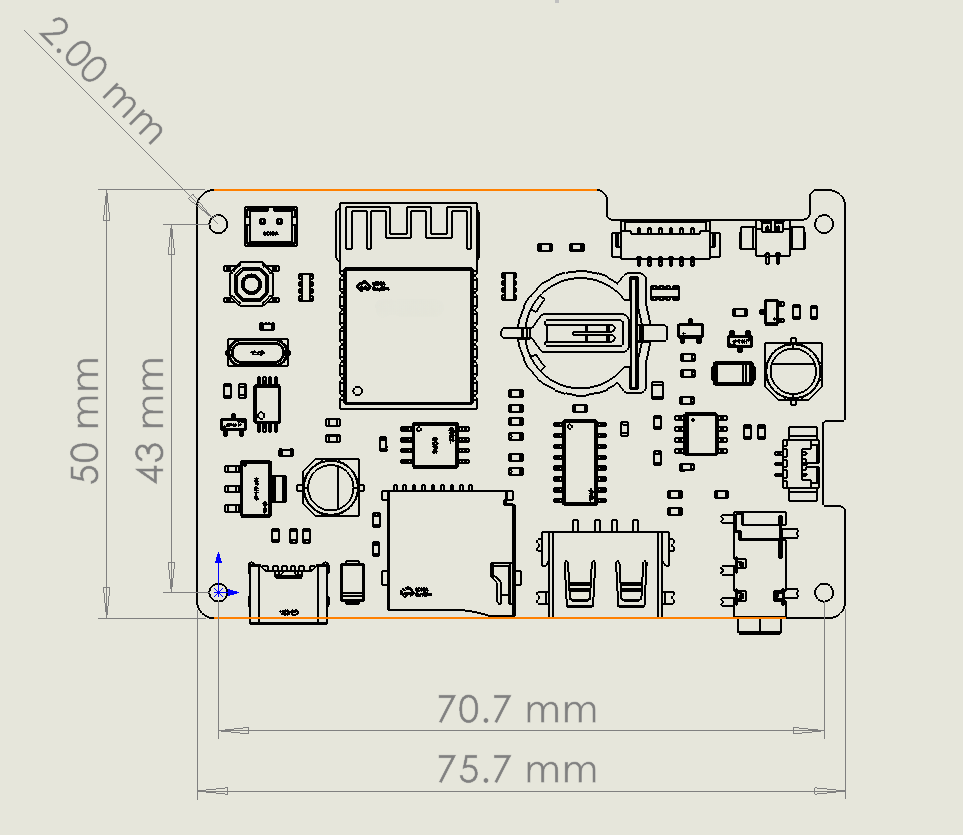
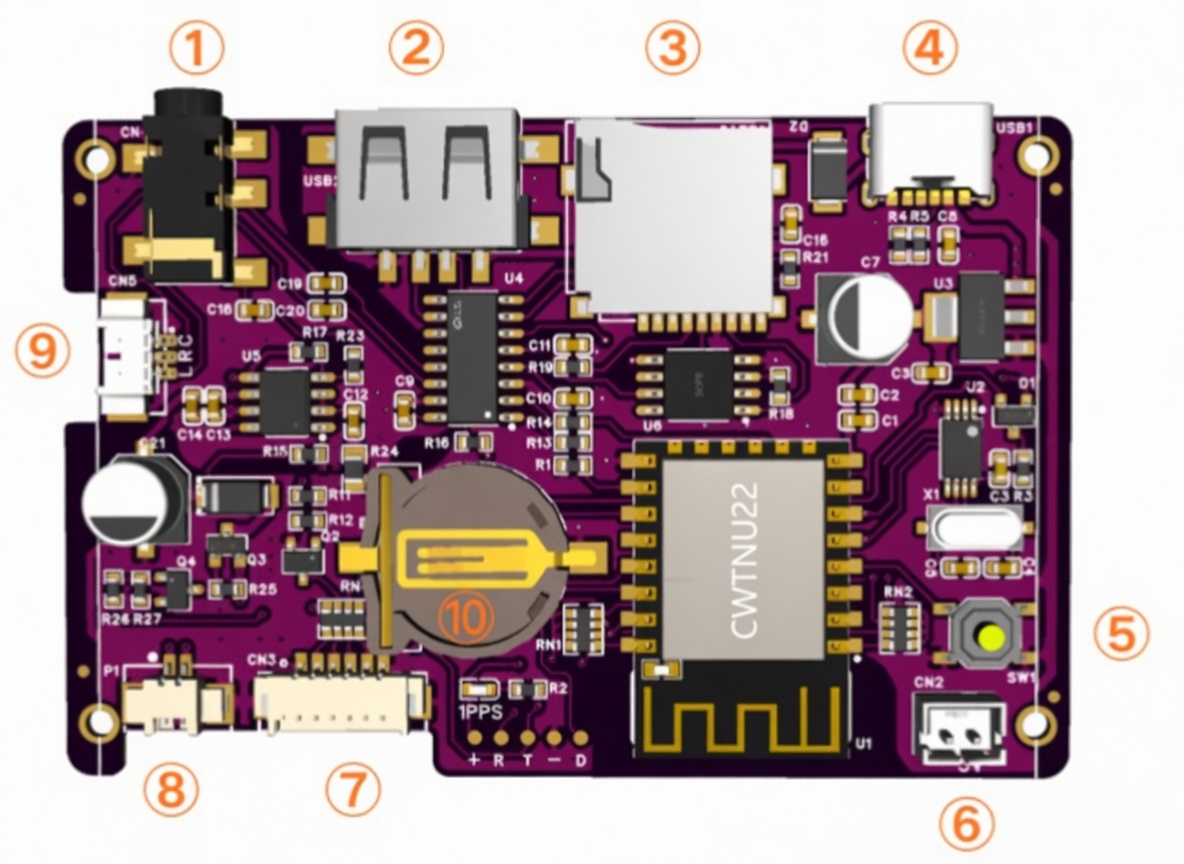
Core Board Interface Description
No.
Interface
Direction
Description
①
3.5mm Headphone Jack
0
Audio output, can connect external amplifier/speaker
②
USB Drive
I
/
③
TF Card
I
/
④
TYPE-C Power
I
Power only, 5V, current capacity must be ≥2A.
⑤
Button
I
For network configuration, etc.
⑥
Power Port
I/O
5V. Can supply power to peripheral circuits or power the core board itself.
⑦
Function Data Port
I+0
For secondary development
⑧
Speaker
0
Onboard 2W amplifier, supports 8Ω 2W speaker
⑨
Audio Output
0
Same function as ①
⑩
Battery Holder
I
Powers RTC to maintain time during power loss. Model: CR1220
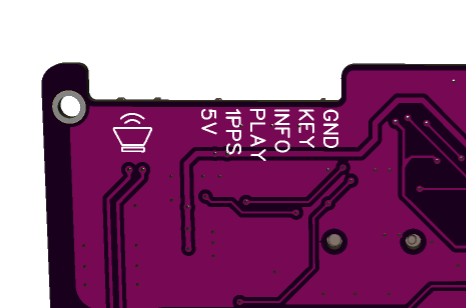
2. Function Data Port Pinout
Expansion Interface Pin Description
No.
Symbol
IO
Function
Description
1
VCC
I
Power Positive
5V output for signal power only. Suitable for low-current applications. Use port ⑥ for high current.
2
1PPS
O
Second Pulse Signal
Rising edge aligned with second change. High level duration 100ms.
3
PLAY
O
Playback Level Signal
Open-drain output for controlling external amplifier power. Activates before audio output.
4
INFO
O
Information Output
UART output. See “Output Data” section below.
Note: This pin must be high or floating at power-up. Low level will prevent the core board from booting.
5
KEY
I
Button Interface
Active low (short to GND). Same function as onboard button ⑤.
6
GND
I
Power Negative
Connect to power ground.
3. INFO Information Output Interface
The core board uses UART to transmit information. UART parameters are fixed and cannot be modified.
3.1 UART Parameters
Baud Rate: 115200
Parity: None
Data Bits: 8
Stop Bits: 1
Frame Interval: 100ms
Transmission Cycle: 1 second
Max Frame Length: 200 Bytes
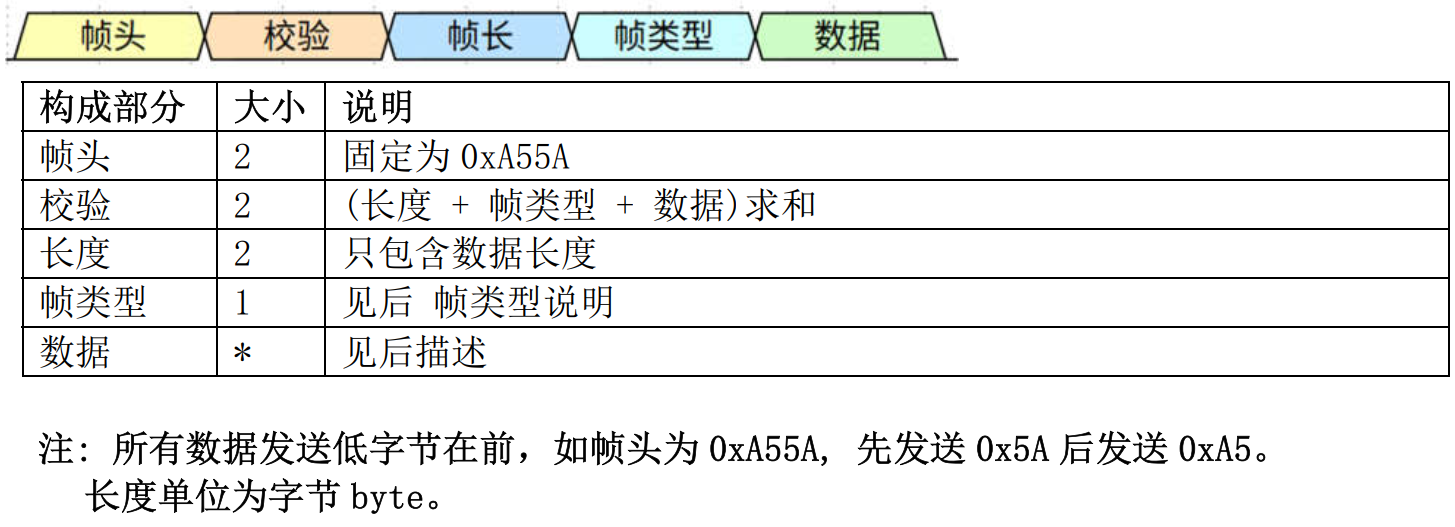
3.2 Communication Frame Format
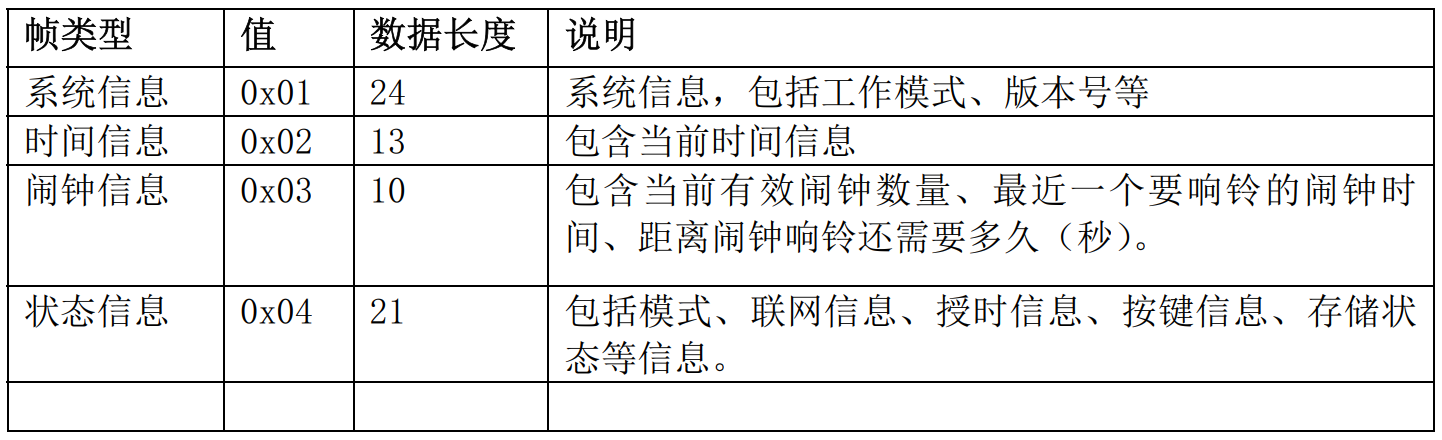
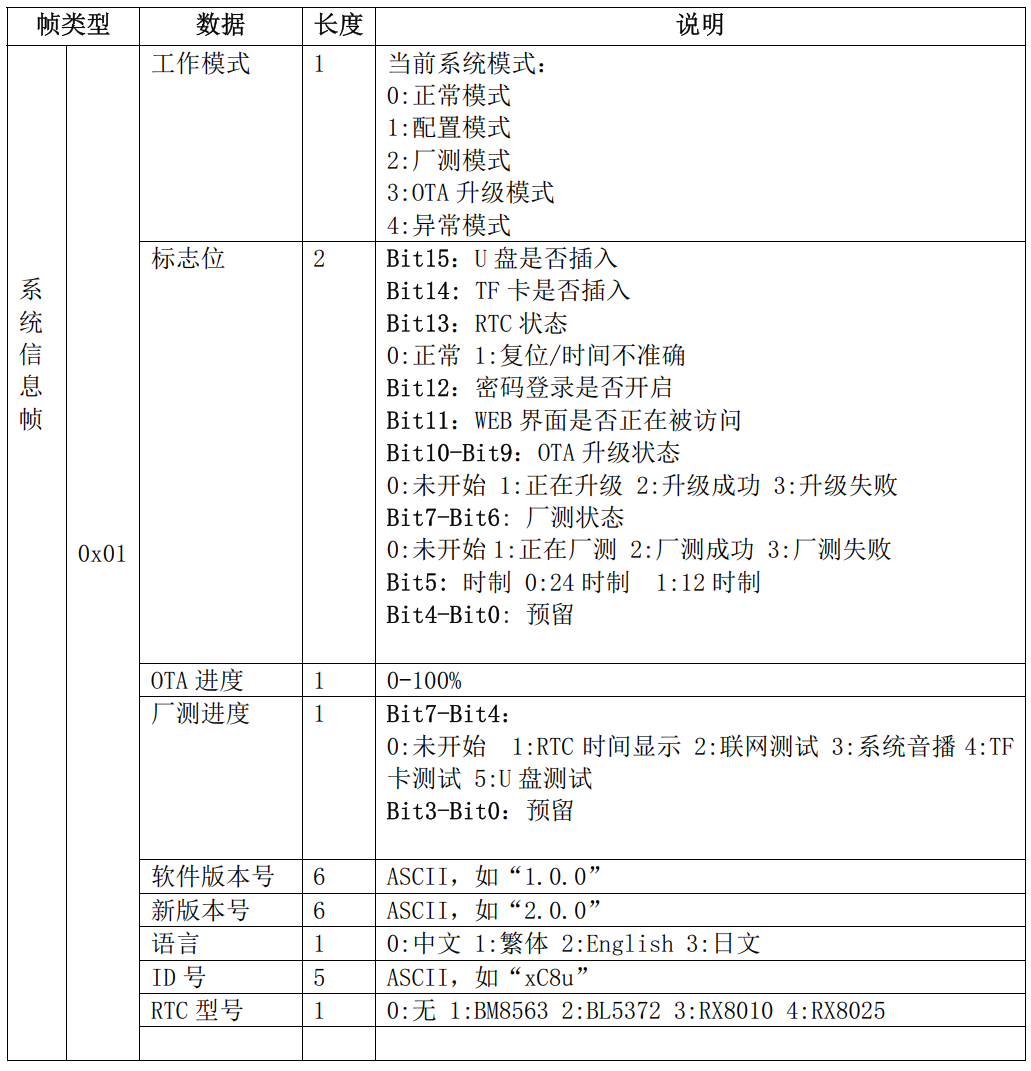
3.3 Frame Type Description
3.4 System Information Frame
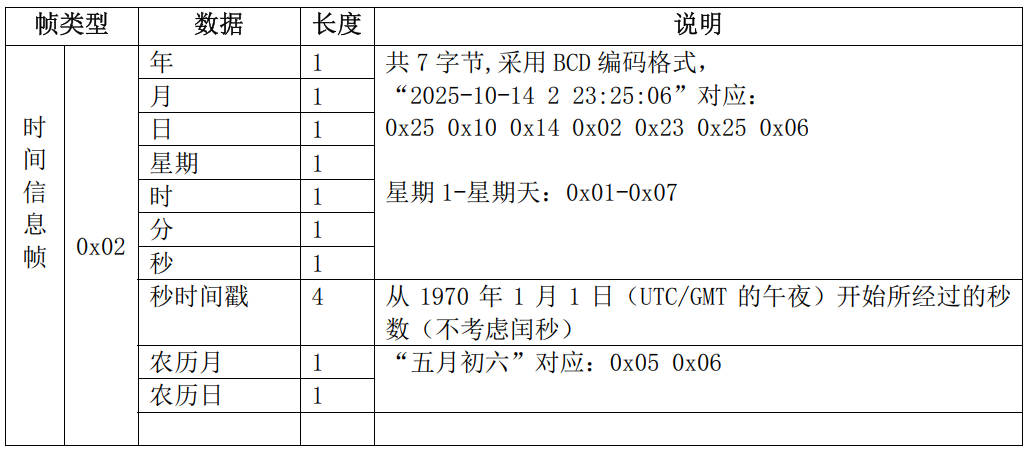
3.5 Time Information Frame
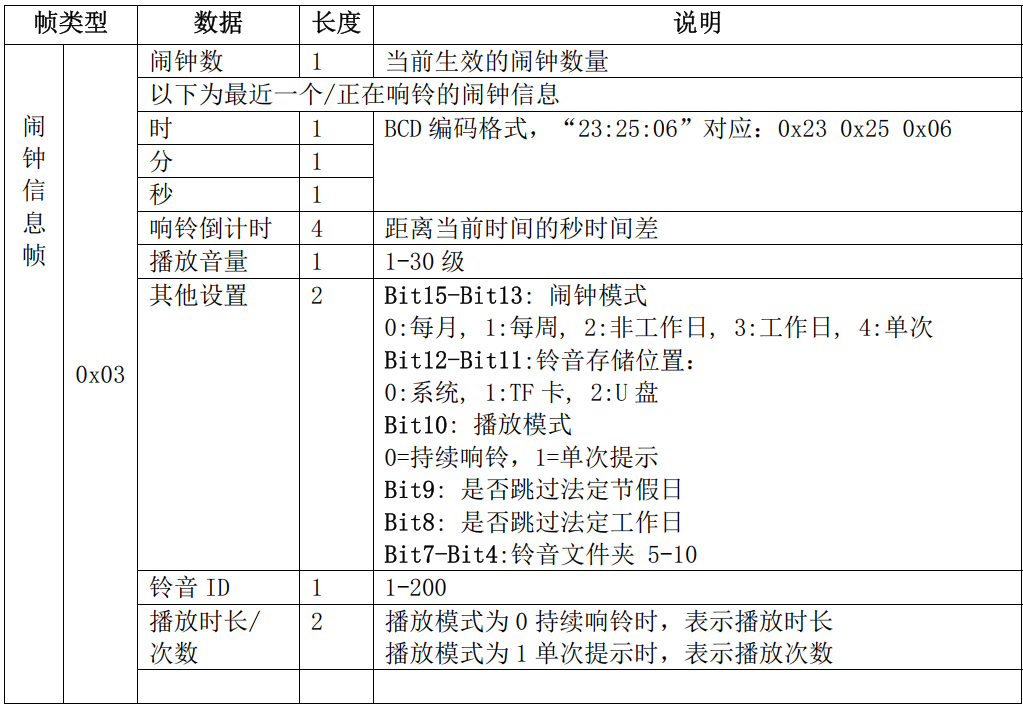
3.6 Alarm Information Frame
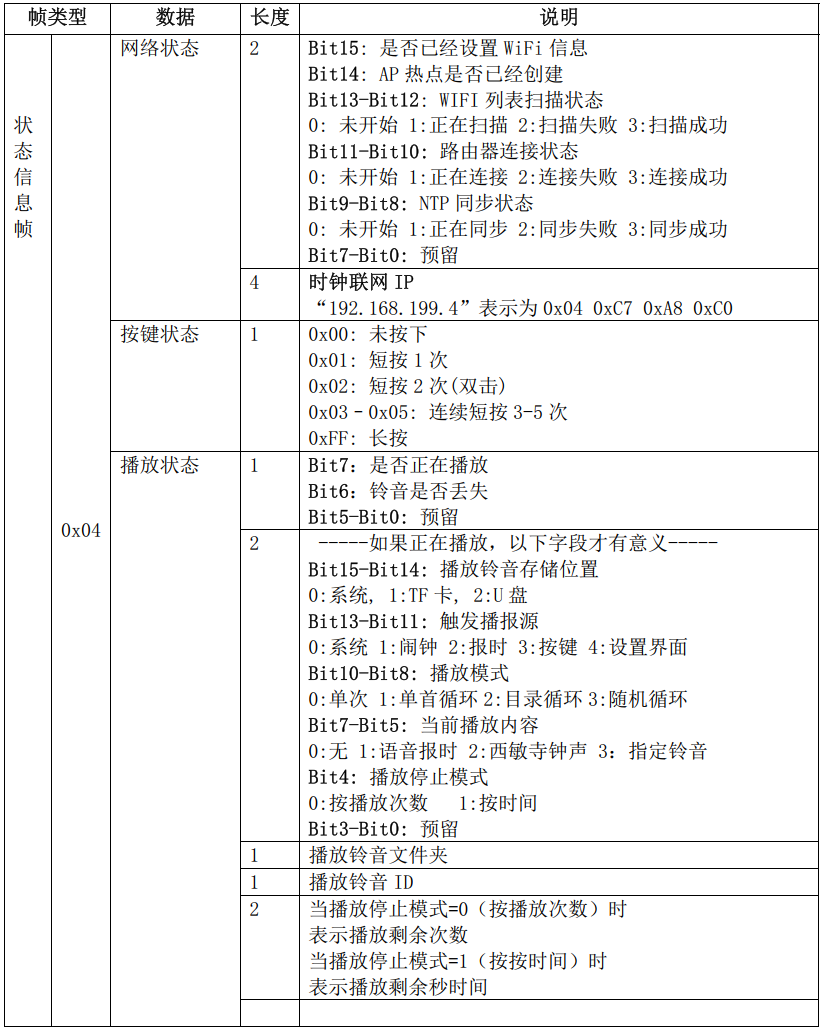
3.7 Status Information Frame
3.8 Transmission Timing
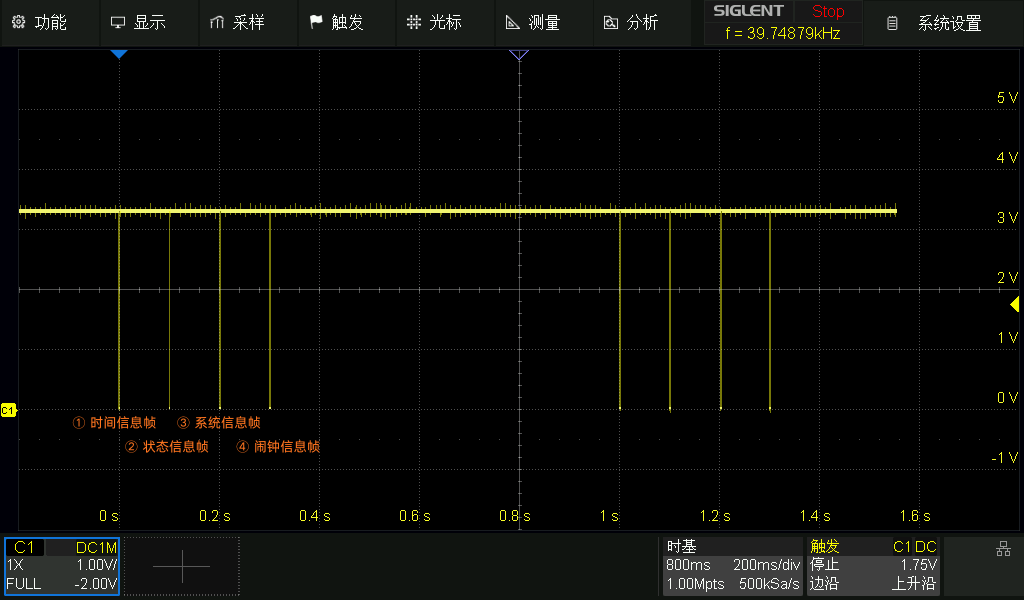
At the start of every second (0ms), 4 frames are sent continuously in fixed order (Time, Status, System, Alarm)
Interval between frames ≈ 100 ms
Receiving end must complete (receive + parse + process) a single frame in less than 100ms − frame transmission time
Countdown: 0x00004B84, 19332 seconds remaining before alarm rings
Playback Volume: 0x11: Volume level 17
Other Settings (Alarm mode): 0x2400&0xE000 Weekly
Other Settings (Ringtone storage): 0x2400&0x1800 System ringtone
Other Settings (Playback mode): 0x2400&0x0400 One-time reminder
Other Settings (Skip statutory holidays): 0x2400&0x0200 Do not skip
Other Settings (Skip statutory workdays): 0x2400&0x0100 Do not skip
Other Settings (Ringtone folder number): 0x2400&0x00F0 Meaningful only when playing a ringtone from TF/USB
Ringtone ID: 08 Meaningful only when playing a ringtone from TF/USB
Playback Count / Duration: 0x0001 Play once
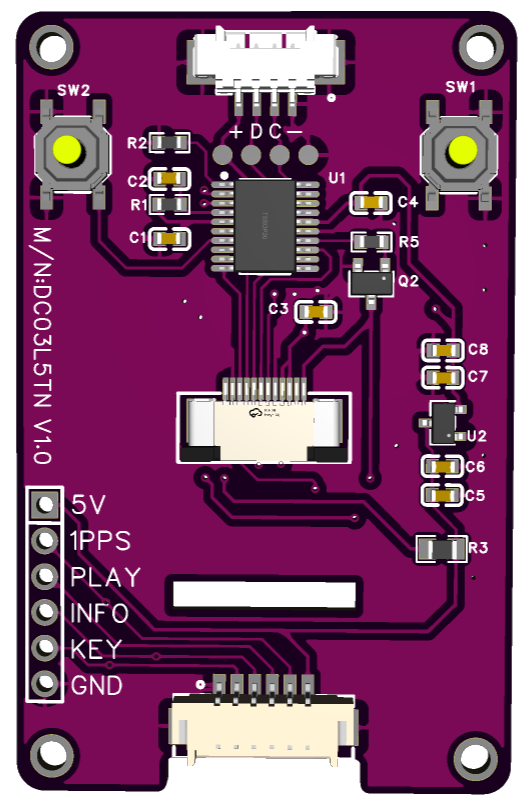
Display Module (1.77-inch TFT)
We provide a 1.77-inch TFT LCD module (128×160 resolution, ST7735 driver).
It can be directly used with the Music Alarm Clock Core Board to display time, alarms, and other basic information.
Reference schematics and sample code are also provided for user reference and secondary development.
Note: The schematics and code are for reference and learning purposes only.
Features
Displayed Content: Date, time, alarm count, Wi-Fi status, playback status, alarm countdown, etc.
Languages: Automatically switches between Chinese, English, and Japanese based on system language
Themes: 8 color themes supported
Button SW1: Short press to cycle brightness
Button SW2: Short press to show LAN IP, double press to switch theme
Display Module Images
Back side
Default theme (Chinese)
Frequently Asked Questions
1. What is the timekeeping accuracy?
Timekeeping accuracy depends on the device’s operating condition:
Offline (no network):
The core board uses the BL5372 chip and supports compensation adjustment on the [System Settings] page. Users can calibrate it according to the actual environment to offset deviation caused by crystal characteristics.
Online (network synchronized):
With a network connection, the device runs our self-developed NTP client algorithm. In a good LAN environment, synchronization accuracy can reach the millisecond level.
2. How do I confirm successful network configuration?
You can confirm whether the device has connected to the network successfully in the following four ways:
Status bar on the configuration page: On the Wi-Fi settings page, check whether the connection status bar shows “Normal”.
Voice feedback: After the first successful network connection, the device will usually provide a clear voice prompt.
Time announcement verification: Press the button to trigger a manual time announcement. If the announced time matches the current accurate time, network time synchronization has succeeded.
Display screen (if applicable): If the device is connected to the matching display module, the interface will show the corresponding network connection indication or updated time.
3. When does time synchronization occur?
There is no fixed sync time. Synchronization starts from power-up based on the configured interval (1 minute / 5 minutes / 1 hour / 1 day).
4. What is the function of the coin cell battery?
The core board has an RTC circuit, so it can keep time even without a network connection. When power is removed, the coin cell powers the RTC to prevent time loss.
The coin cell model is CR1220.
5. Does a dead coin cell battery affect normal operation?
When the battery is dead, time will be lost after power outage. However, with a network connection, the device will automatically sync time upon power-up. The battery typically lasts over one year.
6. Cannot connect to router
Common solutions:
① Verify Wi-Fi password.
② The device only supports 2.4GHz (5GHz not supported).
③ For dual-band routers with same SSID, separate bands or use guest network.
④ Check for MAC whitelist or other restrictions.
⑤ Ensure IP mode (DHCP/Static) matches router.
⑥ Some enterprise networks require MAC authentication (MAC can be modified).
⑦ Try “Persistent Connection” mode for compatibility issues (e.g., certain TP-Link models).
⑧ Router must use WPA/WPA2 (WPA3 not supported).
7. Difference between Normal Mode and Persistent Connection Mode?
Path: [System] → [Router Connection]
Normal Mode (default): Connects at power-up and during scheduled syncs. Will retry up to 6 times if disconnected.
8. Will the device still work if the manufacturer’s server is discontinued?
Yes. Core functions (time announcement, alarms, local operation) are completely independent of the manufacturer’s server. Only non-essential features such as automatic statutory holiday updates and OTA upgrades require cloud support.
9. How to restore factory settings?
Two methods:
① In the configuration interface → [System Settings] → Factory Reset.
② With power off, press and hold the button while powering on to enter factory test mode (this will reset all parameters).
10. How to use Authentication Login?
To protect LAN access security, the system supports password-based access. Once enabled, identity verification is required to enter the settings page.
Mechanism: Cookie authentication is used, and the login session remains valid for 6 hours (no repeated verification is required during this period). The system supports single-user login only. If you switch to another device, the password must be entered again.
How to enable: Authentication is disabled by default. You can enable it manually under [System] > [Security Login Settings].
Security reminder: For security reasons, the device does not store the original password, so it cannot be recovered from the backend. Be sure to remember the password you set.
Note: If you forget the password, it cannot be recovered. You will need to perform a physical reset on the clock, which will erase all parameters and require full reconfiguration.
This Music Alarm Clock Core Board is based on the CWTNU22 core module.
For detailed software release notes and upgrade instructions, please visit:
① Ensure the power supply voltage is between 4.8V and 5.2V, with a current capacity of no less than 2A.
② Prepare a 2.4G Wi-Fi network environment for the clock to connect to the internet.
③ Prepare a smartphone or laptop for device network configuration.
④ Please read the product manual and FAQ carefully for detailed information.
Precautions
1.The device can only automatically synchronize time after connecting to the network. Please refer to the network configuration instructions below.
2.After successful networking, you can set time announcements, alarms, etc. according to your needs.
There are two ways to access the settings interface (choose one):
① Connect to the device hotspot (for configuration): You must strictly follow the configuration steps every time you enter the settings interface.
② Access via LAN IP: This requires successful network configuration first. See the intranet access instructions for details.
Network Configuration Instructions
1. Overview
When the device enters configuration mode, it will create a Wi-Fi hotspot
Connect your phone or computer to this hotspot
Enter the specified IP address in the browser to access the configuration interface
On the web interface, set the Wi-Fi to connect to and other parameters
After completing the settings, save changes and restart the device to apply the new configuration
2. Enter Configuration Mode
Long press the onboard button for 2 seconds to enter configuration mode
There will be a voice prompt after entering configuration mode
In configuration mode, the device will create a Wi-Fi hotspot named IOTTIMER_xxxx
3. Connect to Device Hotspot
Turn off mobile data (cellular network) on your phone
Connect your phone to the hotspot named IOTTIMER_xxxx
Password is 12345678
4. Wi-Fi Information Configuration
After successful connection, there will be a voice prompt
Access 192.147.10.1 in the browser to enter the main settings menu
In the network settings interface, select the target Wi-Fi name and enter the password
After setting, click Save and Restart the clock, then wait for the device to connect to the network
5. Confirm Successful Network Connection
There will be a voice prompt after the first successful network connection
Press the button once to check if the time announcement is correct
If the matching display screen is connected, corresponding information will be shown
6. Possible Issues During Configuration
If the phone shows “No Internet connection” after connecting to the device Wi-Fi hotspot, please keep the connection to the hotspot
If the page cannot be accessed, disable network optimization, automatic network switching, and network acceleration features to prevent automatic disconnection from the hotspot.
In short, after connecting to the hotspot, ignore the no-network warning, maintain the connection, and disable any phone optimization features that may interfere.
Audio Storage Instructions
The core board has built-in audio for time announcements and basic alarms. It also supports audio playback from TF cards and USB drives.
Capacity and File System:
① Maximum supported capacity: 32GB
② File system: FAT32
Audio Formats:
① Supported formats: MP3 and WAV
② Supports all bitrates of MPEG-1/2 Layer III (MP3) decoding
Voice announcement supports tone selection (Chinese×2, English×1), 12/24-hour format
Time announcement schedule supports time-point plan and weekly plan, with optional holiday skip
Support pre-announcement prompt tone
Independent 30-level volume control
4. Other Features
Configuration interface supports Simplified Chinese / Traditional Chinese / English / Japanese
Support scheduled auto-restart
Sync time from phone or computer to the clock
RTC hardware drift compensation (supported on BL5372T)
Detailed Explanation of Selected Features
Most settings are self-explanatory through the interface. A few special items are explained in detail below with reference to the interface.
Note: Due to software updates, some page displays may vary.
1.Alarm list is sorted by ringing time. Click any entry to enter its detailed settings page.
2.Alarm Mode (Monthly Recurring)
Rings on specific dates each month. Can be combined with the following filters:
• Skip Holidays: Skip all statutory rest days (including regular weekends + statutory holidays)
• Skip Workdays: Skip all days that require work (workdays + adjusted work weekends)
3.Alarm Mode (Weekly Recurring)
Rings on selected days of the week. Can be combined with the following filters:
• Skip Holidays: Skip only statutory holidays (regular weekends are not skipped; if Saturday/Sunday is selected and it is not a statutory holiday, it will still ring)
• Skip Workdays: Skip only adjusted work weekends (work-required Saturdays/Sundays)
4.Alarm Mode (Statutory Holidays)
Rings only on “days off”, including:
• All statutory holidays (regardless of weekday)
• Regular weekends (Saturday/Sunday, if not adjusted work days)
Summary: Rings on any normal day off (statutory or regular weekend). Suitable for users who want to be woken on weekends and statutory holidays.
5.Alarm Mode (Statutory Workdays)
Rings only on statutory workdays.
• Includes: Normal workdays + adjusted work weekends
• Excludes: Regular weekends + statutory holidays
• Suitable for users who strictly follow the official work schedule.
6.Alarm Mode (One-time)
Rings only once. After triggering, the alarm is automatically turned off (the alarm entry remains and can be manually re-enabled). Suitable for one-time reminders, temporary early rises, etc.
7.Select ringtone (system ringtones)
8.Other alarm settings
9.Other alarm settings
10.Time announcement ringtone settings
11.Time announcement schedule settings
12.Advanced time announcement settings
13.System Settings 1
14.System Settings 2
1. Interface Overview
Core Board Interface Description
No.
Interface
Direction
Description
①
3.5mm Headphone Jack
0
Audio output, can connect external amplifier/speaker
②
USB Drive
I
/
③
TF Card
I
/
④
TYPE-C Power
I
Power only, 5V, current capacity must be ≥2A.
⑤
Button
I
For network configuration, etc.
⑥
Power Port
I/O
5V. Can supply power to peripheral circuits or power the core board itself.
⑦
Function Data Port
I+0
For secondary development
⑧
Speaker
0
Onboard 2W amplifier, supports 8Ω 2W speaker
⑨
Audio Output
0
Same function as ①
⑩
Battery Holder
I
Powers RTC to maintain time during power loss. Model: CR1220
2. Function Data Port Pinout
Expansion Interface Pin Description
No.
Symbol
IO
Function
Description
1
VCC
I
Power Positive
5V output for signal power only. Suitable for low-current applications. Use port ⑥ for high current.
2
1PPS
O
Second Pulse Signal
Rising edge aligned with second change. High level duration 100ms.
3
PLAY
O
Playback Level Signal
Open-drain output for controlling external amplifier power. Activates before audio output.
4
INFO
O
Information Output
UART output. See “Output Data” section below.
Note: This pin must be high or floating at power-up. Low level will prevent the core board from booting.
5
KEY
I
Button Interface
Active low (short to GND). Same function as onboard button ⑤.
6
GND
I
Power Negative
Connect to power ground.
3. INFO Information Output Interface
The core board uses UART to transmit information. UART parameters are fixed and cannot be modified.
3.1 UART Parameters
Baud Rate: 115200
Parity: None
Data Bits: 8
Stop Bits: 1
Frame Interval: 100ms
Transmission Cycle: 1 second
Max Frame Length: 200 Bytes
3.2 Communication Frame Format
3.3 Frame Type Description
3.4 System Information Frame
3.5 Time Information Frame
3.6 Alarm Information Frame
3.7 Status Information Frame
3.8 Transmission Timing
At the start of every second (0ms), 4 frames are sent continuously in fixed order (Time, Status, System, Alarm)
Interval between frames ≈ 100 ms
Receiving end must complete (receive + parse + process) a single frame in less than 100ms − frame transmission time
Countdown: 0x00004B84, 19332 seconds remaining before alarm rings
Playback Volume: 0x11: Volume level 17
Other Settings (Alarm mode): 0x2400&0xE000 Weekly
Other Settings (Ringtone storage): 0x2400&0x1800 System ringtone
Other Settings (Playback mode): 0x2400&0x0400 One-time reminder
Other Settings (Skip statutory holidays): 0x2400&0x0200 Do not skip
Other Settings (Skip statutory workdays): 0x2400&0x0100 Do not skip
Other Settings (Ringtone folder number): 0x2400&0x00F0 Meaningful only when playing a ringtone from TF/USB
Ringtone ID: 08 Meaningful only when playing a ringtone from TF/USB
Playback Count / Duration: 0x0001 Play once
Display Module (1.77-inch TFT)
We provide a 1.77-inch TFT LCD module (128×160 resolution, ST7735 driver).
It can be directly used with the Music Alarm Clock Core Board to display time, alarms, and other basic information.
Reference schematics and sample code are also provided for user reference and secondary development.
Note: The schematics and code are for reference and learning purposes only.
Features
Displayed Content: Date, time, alarm count, Wi-Fi status, playback status, alarm countdown, etc.
Languages: Automatically switches between Chinese, English, and Japanese based on system language
Themes: 8 color themes supported
Button SW1: Short press to cycle brightness
Button SW2: Short press to show LAN IP, double press to switch theme
Display Module Images
Back side
Default theme (Chinese)
Frequently Asked Questions
1. What is the timekeeping accuracy?
Timekeeping accuracy depends on the device’s operating condition:
Offline (no network):
The core board uses the BL5372 chip and supports compensation adjustment on the [System Settings] page. Users can calibrate it according to the actual environment to offset deviation caused by crystal characteristics.
Online (network synchronized):
With a network connection, the device runs our self-developed NTP client algorithm. In a good LAN environment, synchronization accuracy can reach the millisecond level.
2. How do I confirm successful network configuration?
You can confirm whether the device has connected to the network successfully in the following four ways:
Status bar on the configuration page: On the Wi-Fi settings page, check whether the connection status bar shows “Normal”.
Voice feedback: After the first successful network connection, the device will usually provide a clear voice prompt.
Time announcement verification: Press the button to trigger a manual time announcement. If the announced time matches the current accurate time, network time synchronization has succeeded.
Display screen (if applicable): If the device is connected to the matching display module, the interface will show the corresponding network connection indication or updated time.
3. When does time synchronization occur?
There is no fixed sync time. Synchronization starts from power-up based on the configured interval (1 minute / 5 minutes / 1 hour / 1 day).
4. What is the function of the coin cell battery?
The core board has an RTC circuit, so it can keep time even without a network connection. When power is removed, the coin cell powers the RTC to prevent time loss.
The coin cell model is CR1220.
5. Does a dead coin cell battery affect normal operation?
When the battery is dead, time will be lost after power outage. However, with a network connection, the device will automatically sync time upon power-up. The battery typically lasts over one year.
6. Cannot connect to router
Common solutions:
① Verify Wi-Fi password.
② The device only supports 2.4GHz (5GHz not supported).
③ For dual-band routers with same SSID, separate bands or use guest network.
④ Check for MAC whitelist or other restrictions.
⑤ Ensure IP mode (DHCP/Static) matches router.
⑥ Some enterprise networks require MAC authentication (MAC can be modified).
⑦ Try “Persistent Connection” mode for compatibility issues (e.g., certain TP-Link models).
⑧ Router must use WPA/WPA2 (WPA3 not supported).
7. Difference between Normal Mode and Persistent Connection Mode?
Path: [System] → [Router Connection]
Normal Mode (default): Connects at power-up and during scheduled syncs. Will retry up to 6 times if disconnected.
8. Will the device still work if the manufacturer’s server is discontinued?
Yes. Core functions (time announcement, alarms, local operation) are completely independent of the manufacturer’s server. Only non-essential features such as automatic statutory holiday updates and OTA upgrades require cloud support.
9. How to restore factory settings?
Two methods:
① In the configuration interface → [System Settings] → Factory Reset.
② With power off, press and hold the button while powering on to enter factory test mode (this will reset all parameters).
10. How to use Authentication Login?
To protect LAN access security, the system supports password-based access. Once enabled, identity verification is required to enter the settings page.
Mechanism: Cookie authentication is used, and the login session remains valid for 6 hours (no repeated verification is required during this period). The system supports single-user login only. If you switch to another device, the password must be entered again.
How to enable: Authentication is disabled by default. You can enable it manually under [System] > [Security Login Settings].
Security reminder: For security reasons, the device does not store the original password, so it cannot be recovered from the backend. Be sure to remember the password you set.
Note: If you forget the password, it cannot be recovered. You will need to perform a physical reset on the clock, which will erase all parameters and require full reconfiguration.
This Music Alarm Clock Core Board is based on the CWTNU22 core module.
For detailed software release notes and upgrade instructions, please visit: